
From the editor’s Logo section, click Upload (or Replace) to open the “Add company logo” dialog.
Choose a scope
| Scope | What it does |
|---|---|
| This presentation only | Uses the logo just in this deck — it won’t change your profile. |
| My profile + this presentation | Saves the logo to your profile and uses it here too, keeping them in sync. |
-
Pick a scope card.
-
Upload your logo — SVG, PNG, JPG, or GIF, up to 10MB.
-
Click Apply logo.
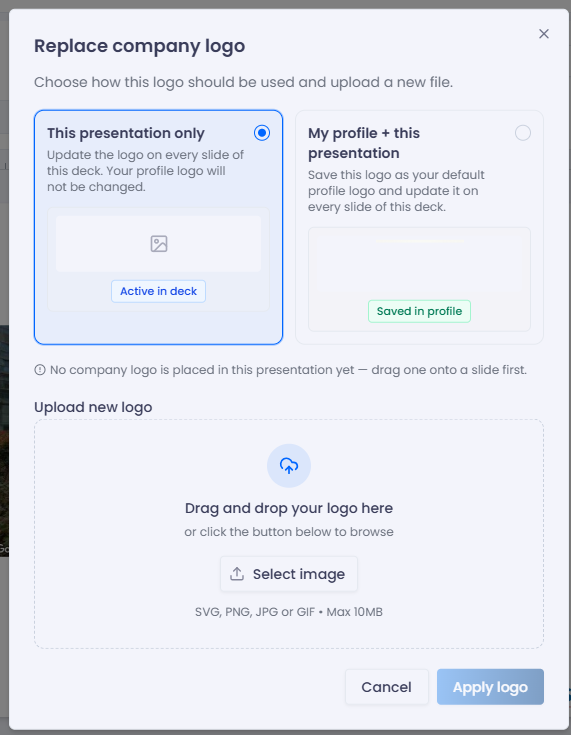
Choose where the logo applies, then upload.
Note: If you choose This presentation only, place the logo on a slide first — otherwise you’ll be prompted that no logo is in the deck yet.