
The presentation’s Comparables panel draws on pinned comps for the linked property. Pinning in the property workspace is the preparation step; placing a comp on a slide is the communication step.
Prepare the comparable set
- Open the linked property’s Comparables workspace.
- Run or review the analysis for the strategy you want to discuss.
- Check the comparable’s characteristics, date, location, and relevance to the subject.
- Pin the comps that support your explanation.
- Return to the presentation editor for the same property.
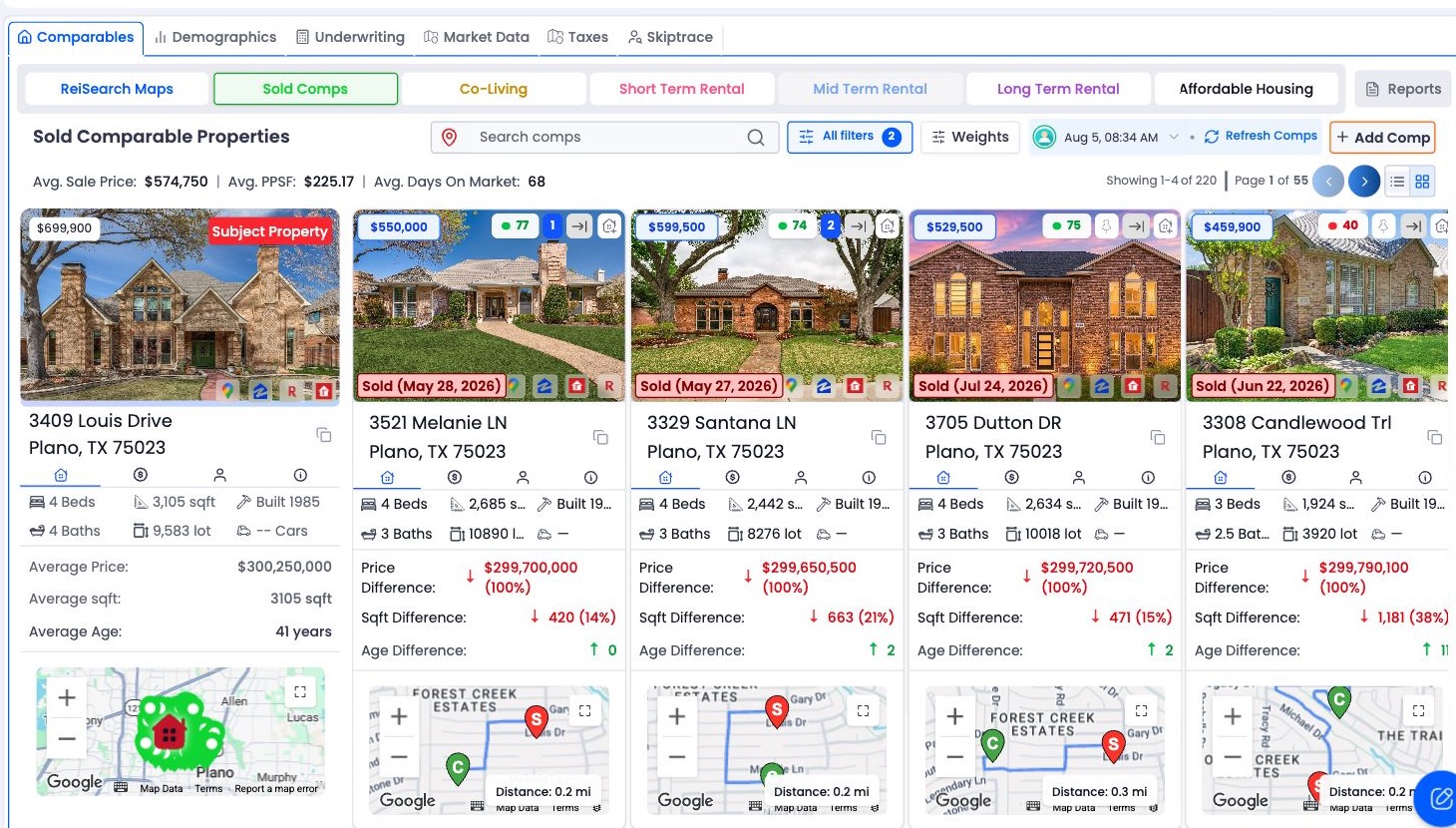
This image shows the main property workspace, not the presentation panel. For pinning instructions, see add, pin, and organize comps.
Choose a comp type in the editor
Expand Comparables in the Elements panel. Choose the appropriate type from the selector: Sold, Long Term Rental, Co Living, Short Term Rental, or Affordable Housing, as available.
The panel uses the latest run and its pinned results. Changing the type changes the evidence you are placing. A sold-price comparison and a rental-income comparison should be explained separately.
If a newer run exists, check which comps are pinned for that run. Do not expect an older run’s selection to appear automatically.
Choose a card layout and place it
- Choose Vertical for a taller card, or Horizontal for a wider arrangement.
- Drag a pinned comp from the panel onto the slide.
- Place it where the photo, key facts, and map can be read.
- Repeat only for the number of comps the slide can support at a readable size.
- Add a brief explanation of each comp’s relevance.
The layout selector controls the card you drag in. If you want a different arrangement for an existing card, review and replace or rearrange that card; do not assume a panel toggle changes every comp already on the canvas.
Comp cards are built from multiple elements. Use the group and layout tools to move the card together. Be deliberate about ungrouping, because moving an individual label or image can break the layout.
Tell the reader what the evidence supports
A useful slide explains the comparison instead of relying on a photo and price alone. For example, describe differences in size, condition, date, or location that affect how you interpret the comp.
Check any subject-versus-comp differences and maps against the current subject data. Missing size, price, year, or coordinates can weaken what those elements communicate. A pinned comp is a selected piece of evidence, not a guarantee of value or investment performance.
If the panel is empty
When No pinned comps found appears, use Go to Property Listing Comps to return to the property analysis.
Check the linked property, selected type, latest run, and pinned results. Running the analysis alone is not the same as pinning the results you want to present. If the run itself failed or contains no suitable results, follow troubleshoot comp runs.
Save the deck, review all comp slides in Preview, and inspect the exported file or published view before sharing.