
Open the Sold Comps workspace
From the property page, select Comparables, then select Sold Comps. The workspace opens with the subject property, returned matches, summary metrics, and refinement controls in one view.
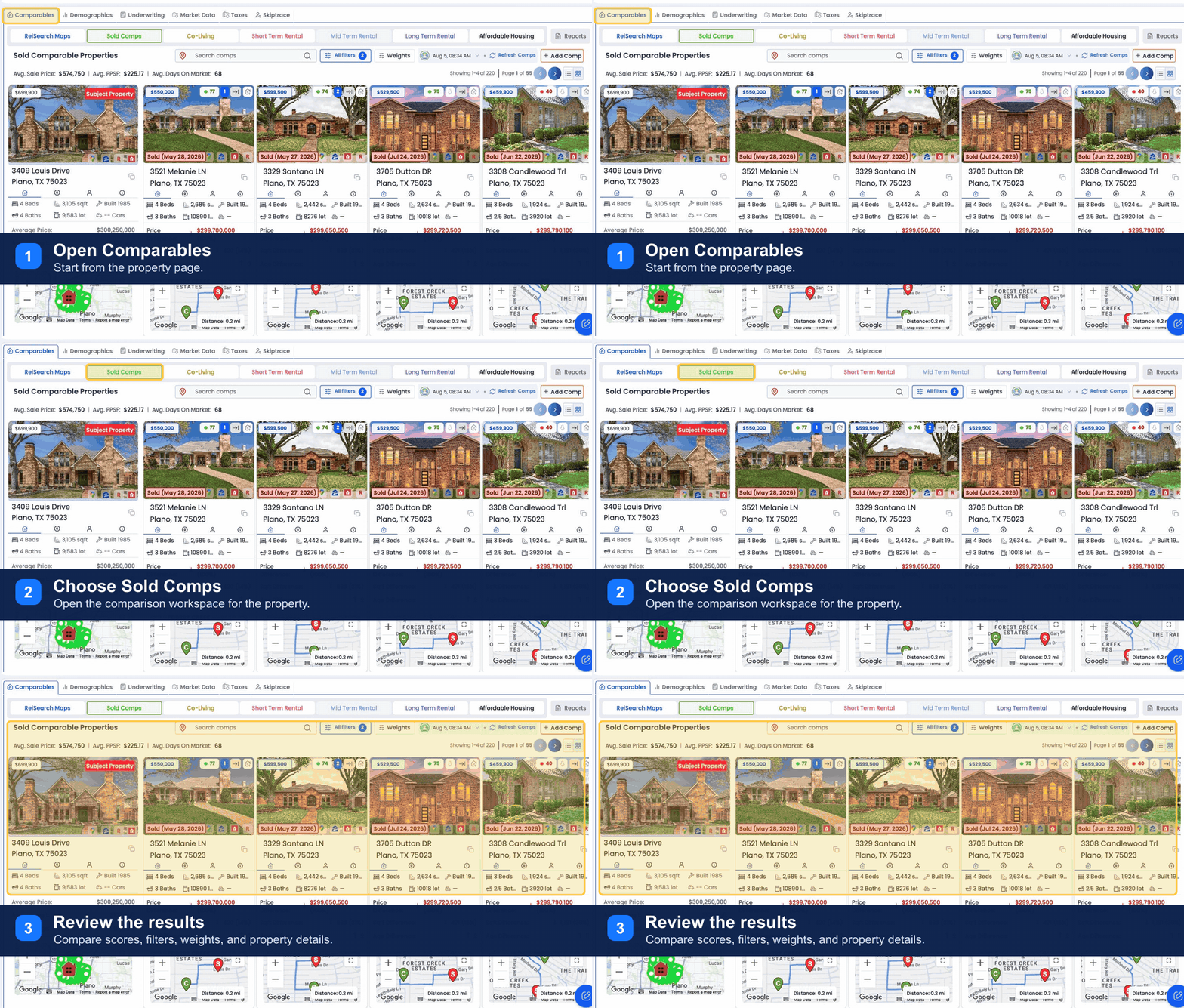
Start with the subject property
The subject property is the property being analyzed. Use its location, beds, baths, square feet, lot size, year built, and strategy as the baseline for every comparison.
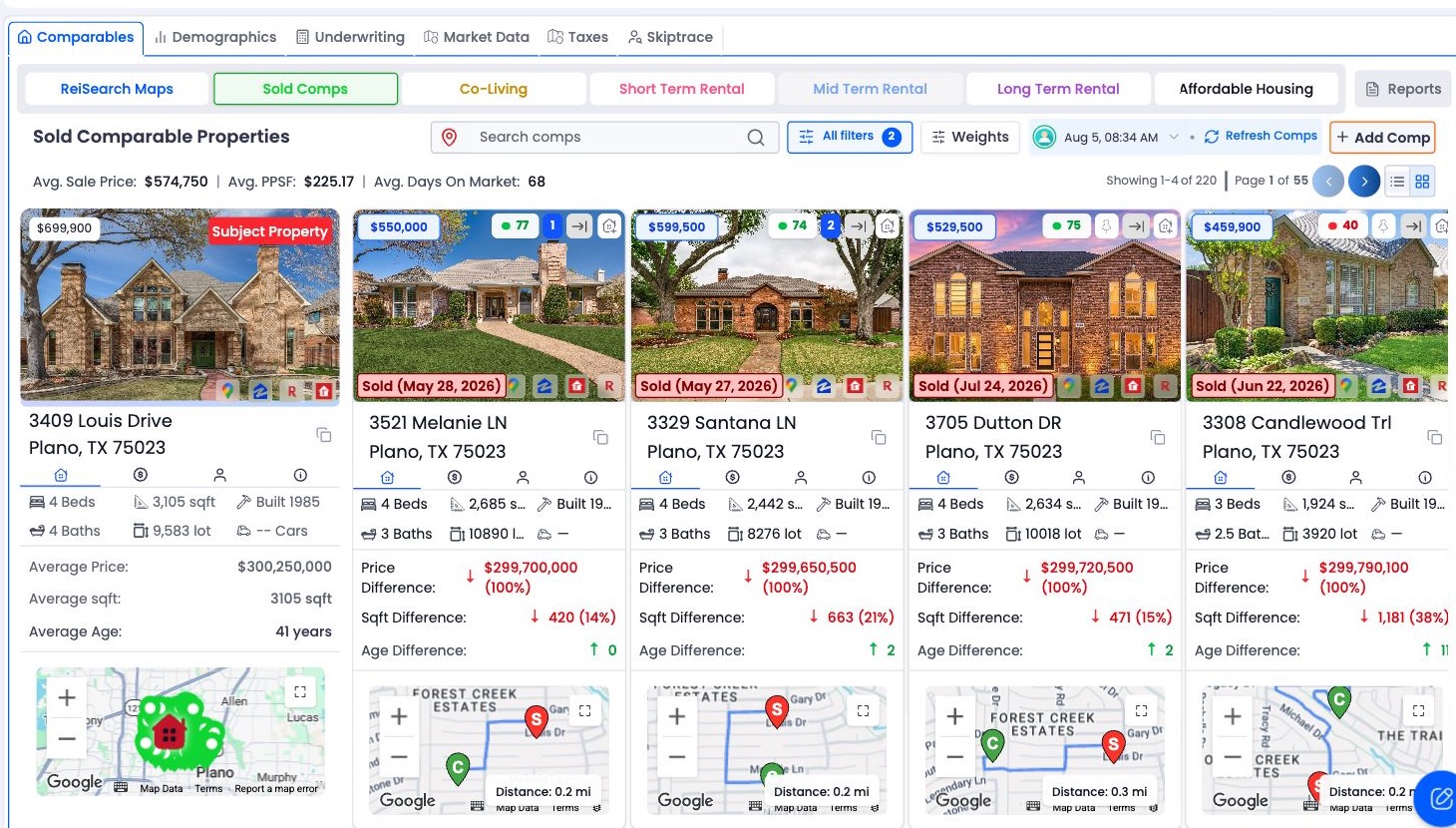
The Sold Comps workspace keeps the subject property, returned matches, summary metrics, scoring, filters, and view controls together.
A comp can be nearby yet still be a weak match if its characteristics differ substantially. Likewise, a slightly farther property may still be useful when its size, use, and condition are more comparable.
Information available on a comp
Depending on the data returned for a property, a comp may show:
- Address and distance from the subject
- Listing status and source
- Property type
- Beds, baths, living area, lot area, stories, and year built
- Listing or sold price and price per square foot
- Days on market and sold date
- Images, map location, and links to available source records
- A comparison score and individual scoring factors
Missing values do not automatically make a property unusable, but they reduce what can be compared confidently.
What the score means
The comp score is a 0–100 weighted-similarity score. Higher scores indicate a closer match across the criteria enabled for that comp type.
The score is affected by:
- Which criteria are enabled.
- The relative weight assigned to each criterion.
- The tolerance configured for differences.
- Whether the returned property contains the data needed for those comparisons.
Similarity is not valuation: A high score means “more similar under the active ranking configuration.” It does not mean the comp proves a specific after-repair value, rent, or offer price.
Default and custom ordering
When default scoring is active, ReiSearch initially orders results by distance, nearest first. When a custom ranking configuration is active, results initially order by score, highest first. A manual column sort overrides that initial order.
The workspace displays a Custom scoring indicator when the returned list was re-ranked with the user’s saved weights.
Summary averages
The comps workspace can calculate:
- Average sale price
- Average price per square foot
- Average days on market
If no results are pinned, the calculation uses the available comp set. If at least one comp is pinned, the summary uses only pinned comps. This makes pinning a useful way to see how a carefully selected set changes the averages.
A practical review sequence
- Remove results that clearly fail location or property-type relevance.
- Compare size, beds, baths, year built, lot size, and status.
- Review source and date information.
- Use the score as an ordering aid, not the only decision.
- Pin the strongest supporting comps.
- Recheck the summary averages after pinning.