
Add an image
-
Choose Insert → Image (or the image button on the toolbar) and pick a file. It’s added to the canvas and selected.
-
Drag the corner handles to resize, or set an exact Width/Height in the Size & Position section of the format panel (turn on Lock Aspect Ratio to keep proportions).
Crop & replace
- Crop Image opens a full-screen crop tool — drag the frame, reposition the image, then confirm.
- Replace Image swaps in a new file while keeping the same size and position.
Shapes
Insert a Rectangle, Circle, Triangle, or Line. Set its Fill and Outline colors, and use the format panel for Opacity, Corner Radius, and Drop Shadow.
Arrange & align
- Use Arrange to layer elements: Bring to front, Bring forward, Send backward, Send to back.
- Select multiple elements (Shift-click) to Distribute horizontally/vertically or Tidy up their spacing.
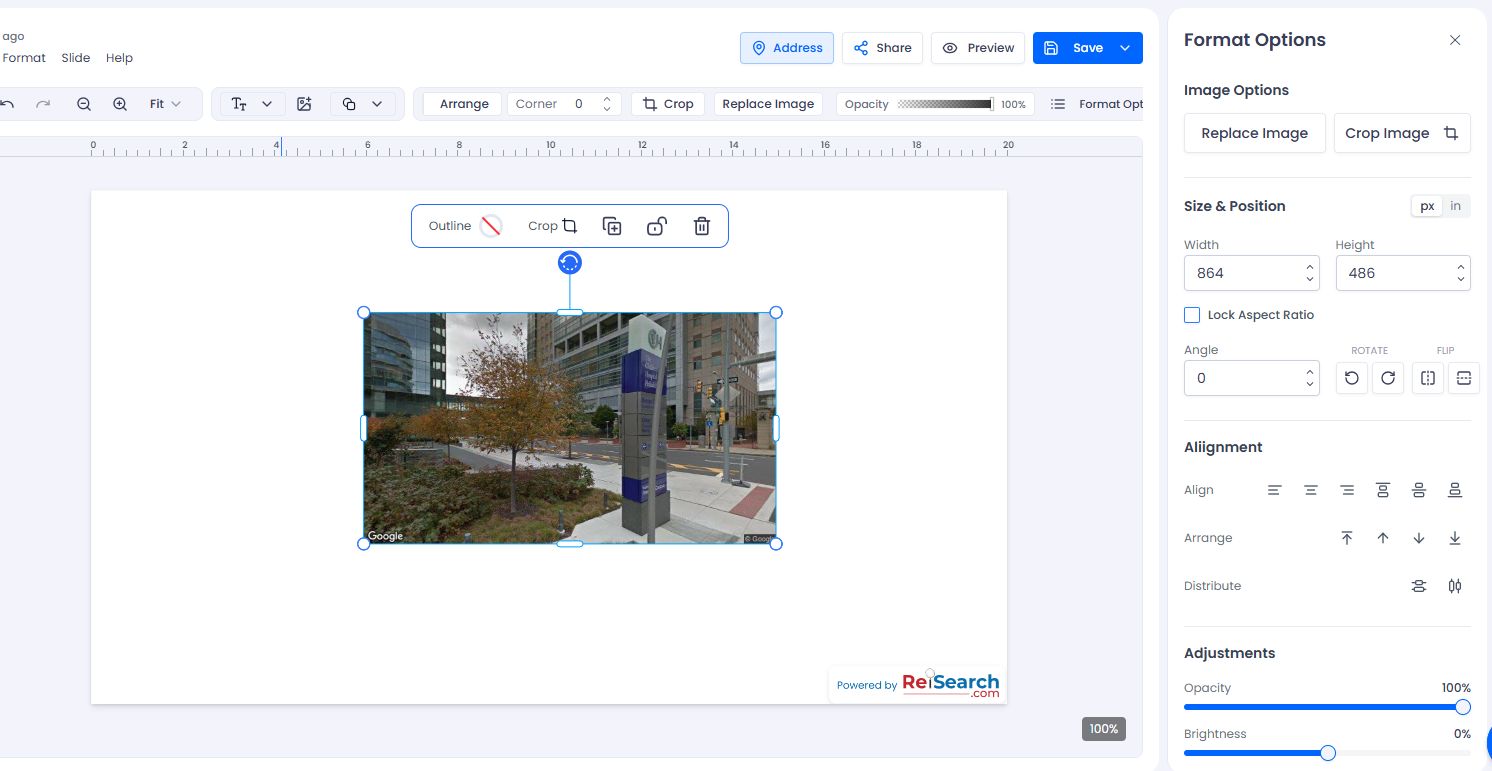
The format panel collects size, arrange, and effects in one place.