
Add text from the Insert menu (or the toolbar): “Add a heading”, “Add a subheading”, or “Add a little bit of body text”. Double-click a text box to edit it.
Format text
- Font and Font Size (8–200).
- Bold, Italic, Underline, and Strikethrough.
- Text Color — solid or gradient.
- Alignment (left, center, right, justify) and Bullet/Numbered lists.
- Text case (UPPERCASE / lowercase / Title Case / Sentence case) and Insert link.
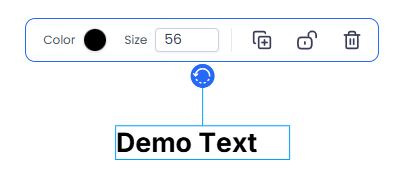
Select text to reveal its formatting toolbar.
Insert property data
Text can pull in live property data so your deck stays accurate. Select a text box and open “Link Fields” to launch the Formula Builder:
- Simple mode inserts a single field (for example, the property address or a price) — browse by category or search.
- Expression mode builds a calculation from several fields with + − × ÷ and parentheses, with a live Preview of the result.
Bound values resolve from the property’s data, while manually typed text remains literal. Review the resolved content when reusing, previewing, or exporting a deck. A downloaded file does not update after export.
For a step-by-step calculation workflow and validation checks, see Link text to property fields and build formulas.