
Folders hold properties as well as subfolders. You can search for a property by address and add it, choosing whether to move the existing property or add a copy.
Start from the Dashboard
-
Sign in to ReiSearch and open the Dashboard.
-
Select Folders from the left navigation.
-
Find the destination folder, open its ⋯ menu, and choose Add Properties.
Find and add a property
-
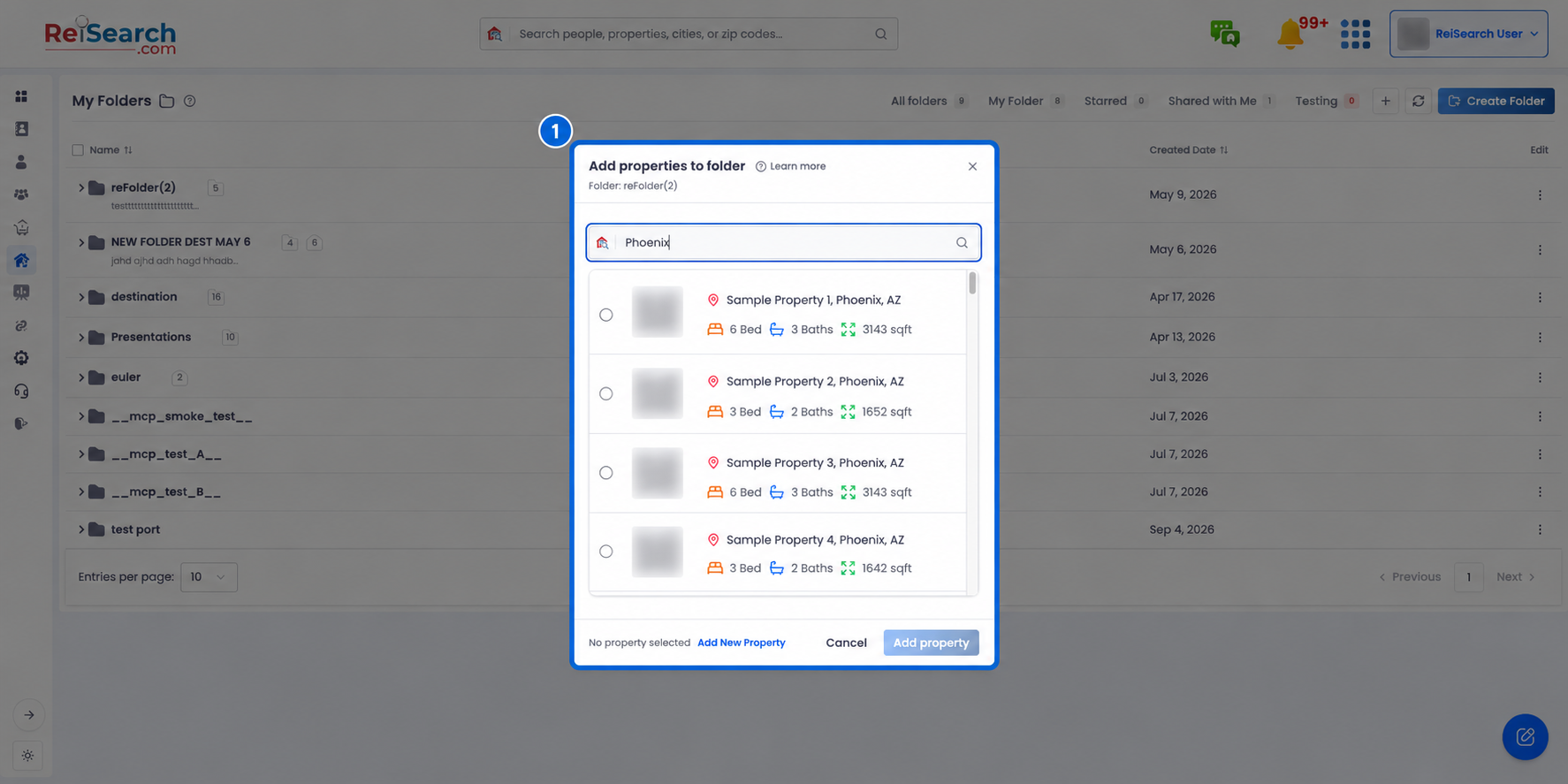
Open the “Add properties to folder” dialog (from a property’s Move to folder action, or from the folder you want to add to).
-
Start typing an address — results appear automatically as you type. Pick the property from the list.
-
Don’t see it? Click “Add New Property” to create it first, then come back.
-
Click Add property to continue to the confirmation step.
Move or copy
On the confirmation step, choose how the property joins the folder:
| Option | What it does |
|---|---|
| Move to folder | Links the existing property to this folder. Changes you make here affect the original property. (This is the default.) |
| Make a copy | Creates a duplicate in this folder; changes won’t affect the original. You can choose what to copy: Deal Structure, Documents, and Comps (all on by default). |
-
Pick Move to folder or Make a copy.
-
If copying, tick the data to bring along — Deal Structure, Documents, Comps.
-
Click Add Properties (or Copy & Add Properties). The folder briefly highlights to confirm.