
Categories are colored labels that group related folders — like “Hot leads” or “Q3 targets.” They show up as tabs next to the four views, so you can filter your folders with one click. Categories are private to you and aren’t shared with a folder’s members.
Start from the Dashboard
-
Sign in to ReiSearch and open the Dashboard.
-
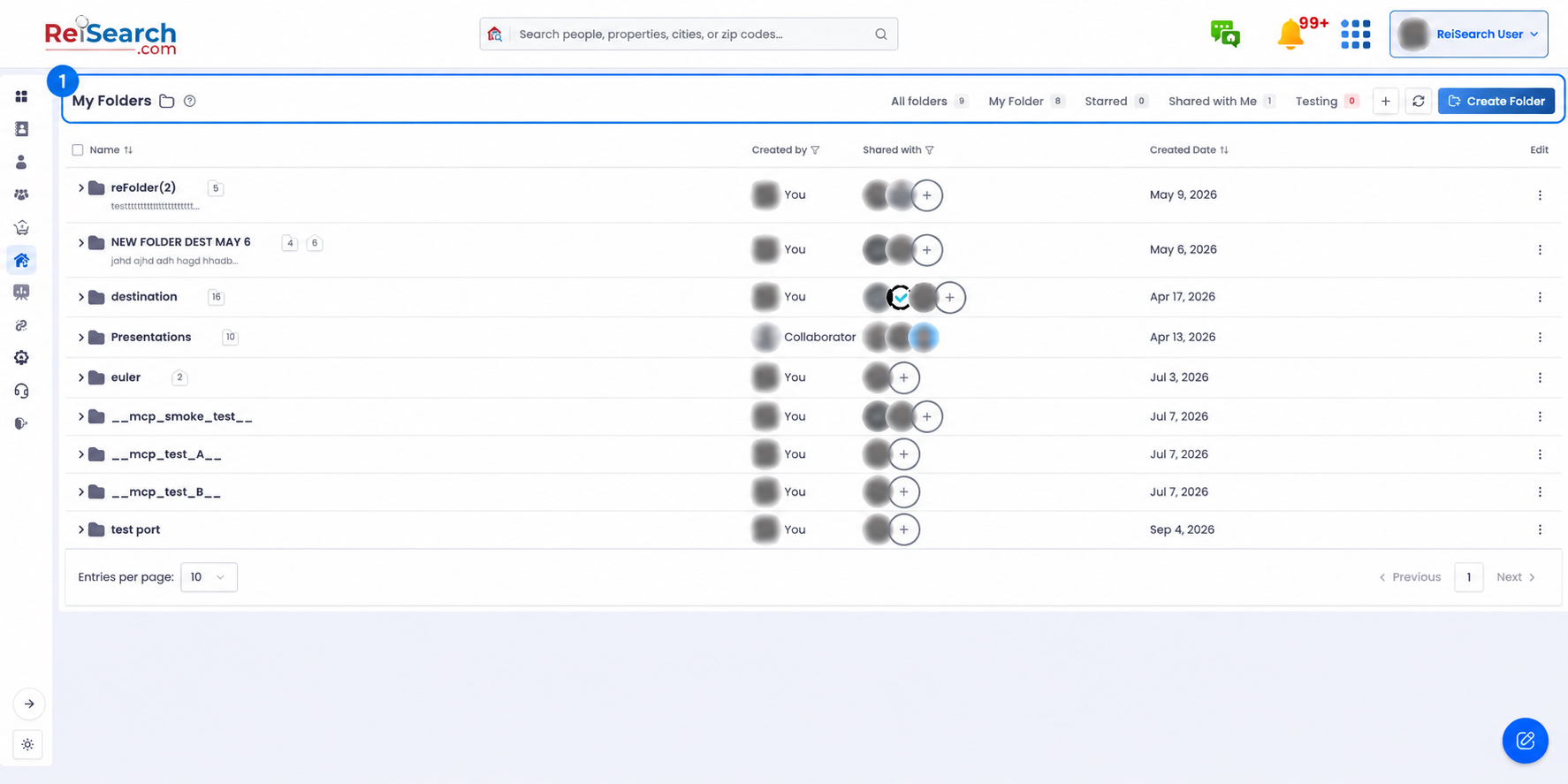
Select Folders from the left navigation. Your view tabs and private category tabs appear across the top of the workspace.
Filter by a category
-
In the header, click a category tab (each has its own color and a count). The list filters to just that category’s folders.
-
Have lots of categories? The ones that don’t fit collapse into a “More” dropdown at the end of the row — open it to pick one.
-
To go back to everything, click a view tab like All folders.
Tip: On a phone, the views and categories live together in the header dropdown — tap it and choose a category from the list.
Put a folder in a category
-
Open a folder’s ⋯ menu and choose “Add to category”.
-
Pick a category from the submenu. A toast confirms it — “Added ‘…’ to …”.
-
To take a folder out of its category, open the same menu and choose “Remove from category.”
Note: A folder can be in one category at a time — assigning a new one replaces the old. Removing a category never deletes the folder; it just becomes uncategorized. To create and edit the categories themselves, see Manage categories.