
Share a folder to collaborate with people in your network, and control exactly what each person can do — from view-only up to full access.
Start from the Dashboard
-
Sign in to ReiSearch and open the Dashboard.
-
Select Folders from the left navigation.
-
Find the folder you want to share and click its members button, or open its ⋯ menu and choose Manage User Permissions.
Open folder permissions
Click the members button on a folder row (its tooltip reads “Manage user permissions”), or choose “Manage User Permissions” from the folder’s ⋯ menu. The “Manage Folder Permissions” dialog lists everyone with access.
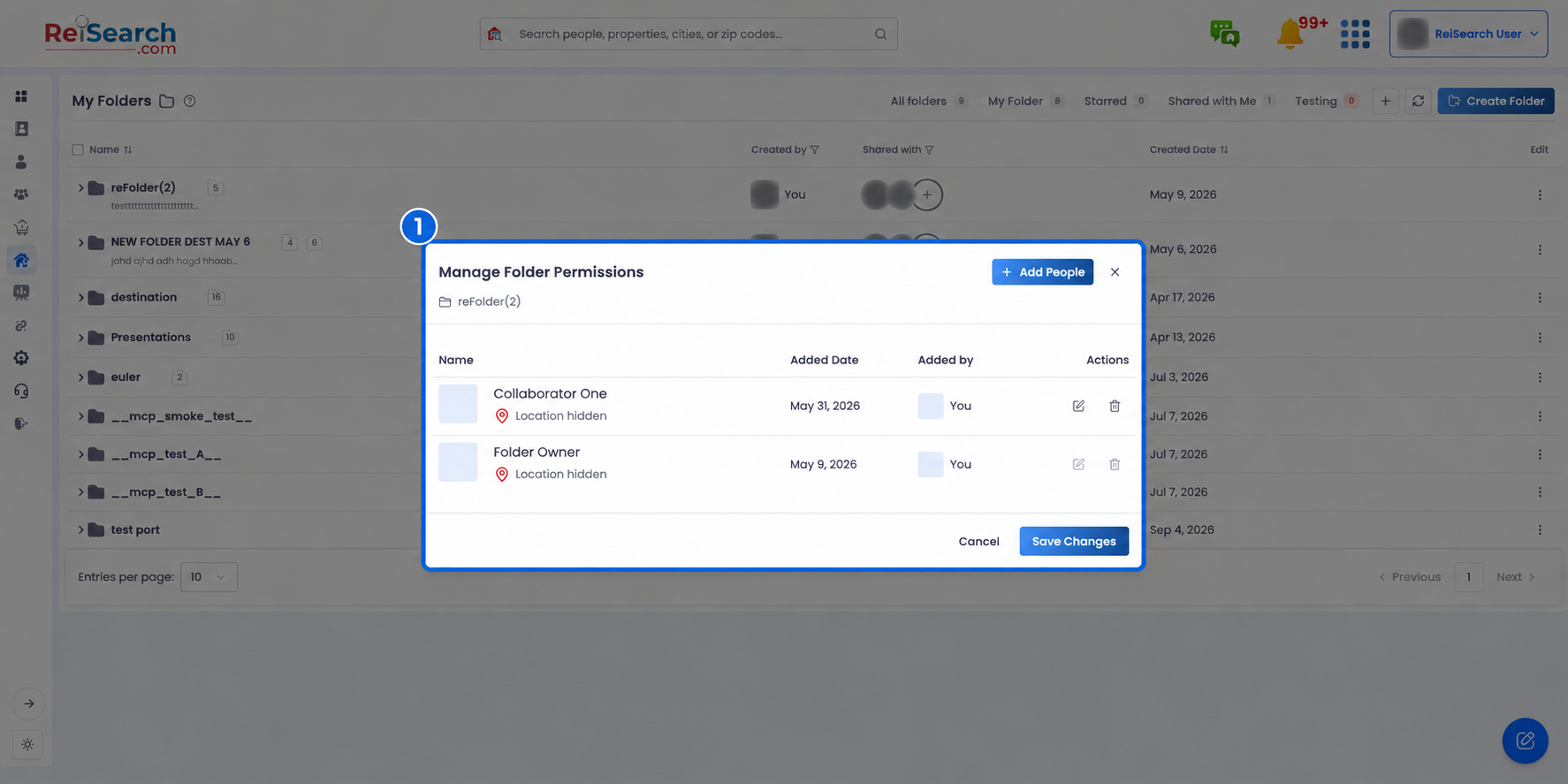
The folder members list, with Add People and per-member actions.
Add people
-
Click Add People. The “Add Members to …” dialog opens.
-
Search your network and select the people you want — they appear as chips.
-
Click Add (enabled once at least one person is selected).
-
Choose what they can see: “No, only future items” (access only what’s added from now on) or “Yes, include existing” (access the properties already in the folder too).
What each permission allows
Click the pencil on a member’s row to open their permission toggles. Permissions are split across a Folders tab and a Properties tab (the Properties tab applies to every property in the folder and its subfolders). View is always on; Full Access turns on everything at once.
| Permission | Lets the member… |
|---|---|
| View | See the folder and its contents. Always on — it can’t be turned off. |
| Edit | Change the folder — rename it and add items to it. |
| Manage Members | Add and remove people from the folder. |
| Manage Resources | Manage the properties and threads inside the folder. |
| Manage Permissions | Change what other members are allowed to do. |
| Delete | Delete the folder. |
| Full Access | Everything above — the highest level. |
Tip: Save with Save Changes. When you adjust the Properties tab, you’ll apply those permissions across all properties in the folder at once.
Remove a member
Click the trash icon on a member’s row and confirm “Remove member from folder?” They’ll lose access to the folder and its default permissions.
Note: The folder’s owner can’t be edited or removed — their row’s actions are disabled (“The folder owner can’t be edited or removed.”).