
Three quick actions keep your folders tidy: rename them inline, star the ones you use most, and delete the ones you no longer need.
Start from the Dashboard
-
Sign in to ReiSearch and open the Dashboard.
-
Select Folders from the left navigation.
-
Find the folder you want to update. Its star control and ⋯ menu contain the actions described below.
Rename a folder
-
Click the pencil icon next to the folder name (its tooltip reads “Rename folder”), or choose Rename from the folder’s ⋯ menu. The name turns into an editable field.
-
Type the new name and press Enter (or click away) to save. Press Escape to cancel. A “Folder renamed” message confirms the change.
Note: If you leave the name empty or unchanged, the rename is simply cancelled — nothing breaks.
Star your favorites
Click the star icon on a folder row to add it to your favorites — a filled yellow star means it’s starred. Starred folders collect under the Starred view tab so you can jump to them fast. Click the star again to unstar.
Tip: On top-level folders the star is always visible. On subfolders it appears when you hover the row (or stays visible once the folder is starred).
Delete a folder
-
Open the folder’s ⋯ menu and choose Delete.
-
A “Delete folder?” dialog appears. Click Delete to confirm, or Cancel to back out.
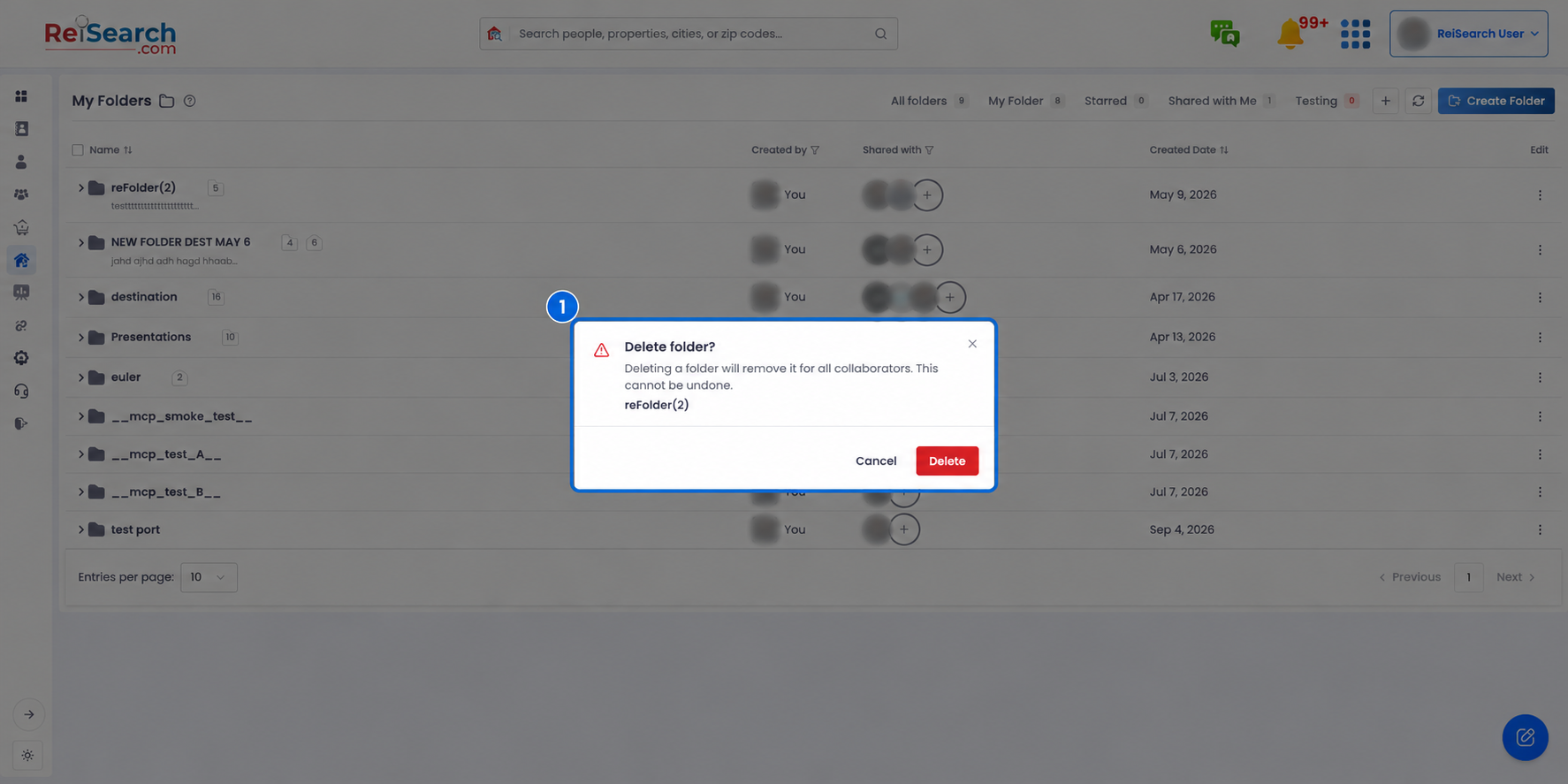
Deleting is permanent: Deleting a folder removes it for all collaborators, and it can’t be undone. If others rely on the folder, consider just removing your own access instead.