
Before you publish
Publishing changes the property from a private workspace into a buyer-facing opportunity. Confirm that you have authority to post it, that the terms are current, and that every image or document intended for buyers is safe to share.
The final Publish action can make the listing available outside your private workspace. This guide explains the workflow but does not publish a property for you.
Start from the Dashboard
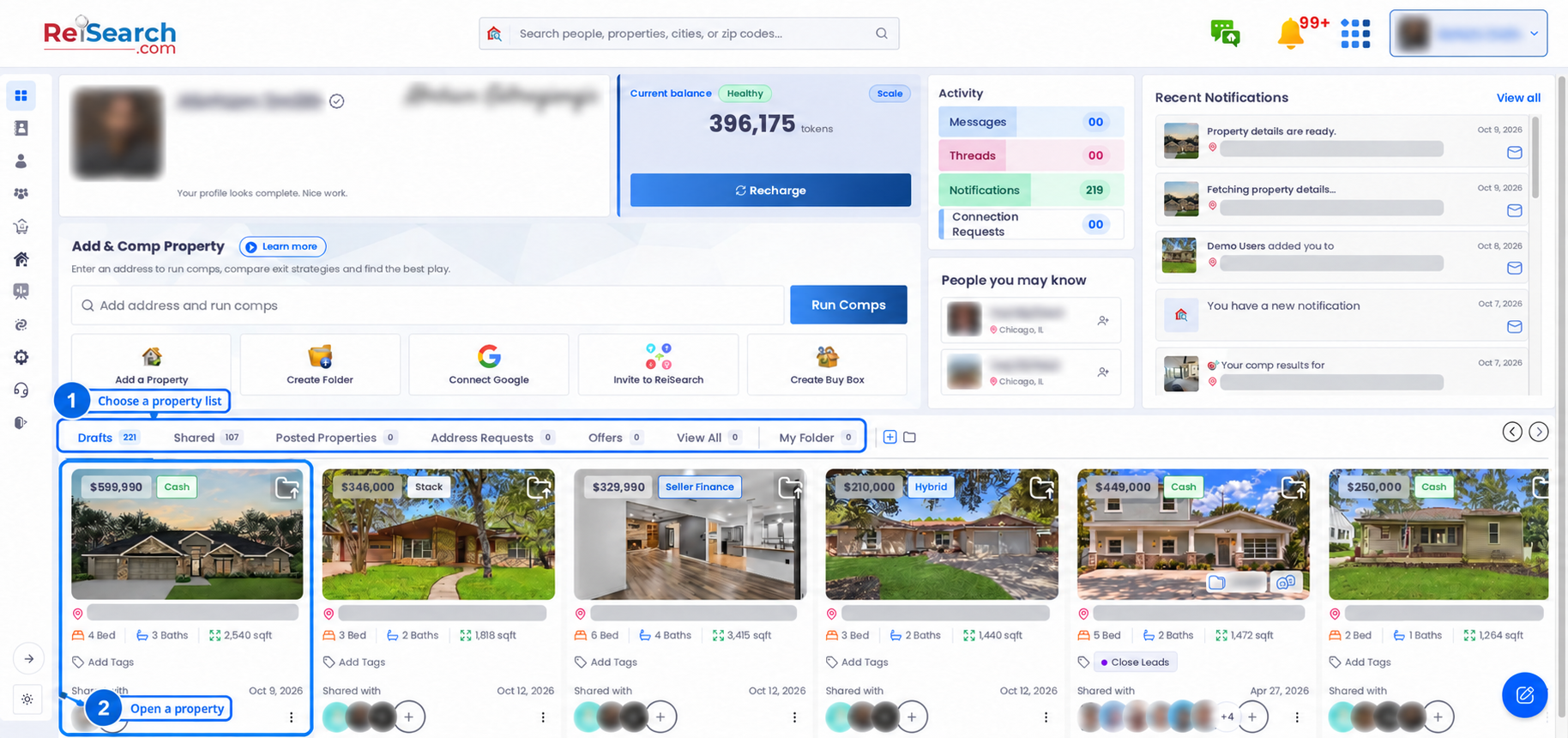
- Sign in at reisearch.com/login. ReiSearch opens the Dashboard.
- In the property area, choose the list that contains the property. A property that has not been published will normally be under Drafts or Shared, depending on your relationship to it.
- Select the property card to open its workspace.
Navigation path: Dashboard → Property list → Property card
1. Verify the property before preparing the listing
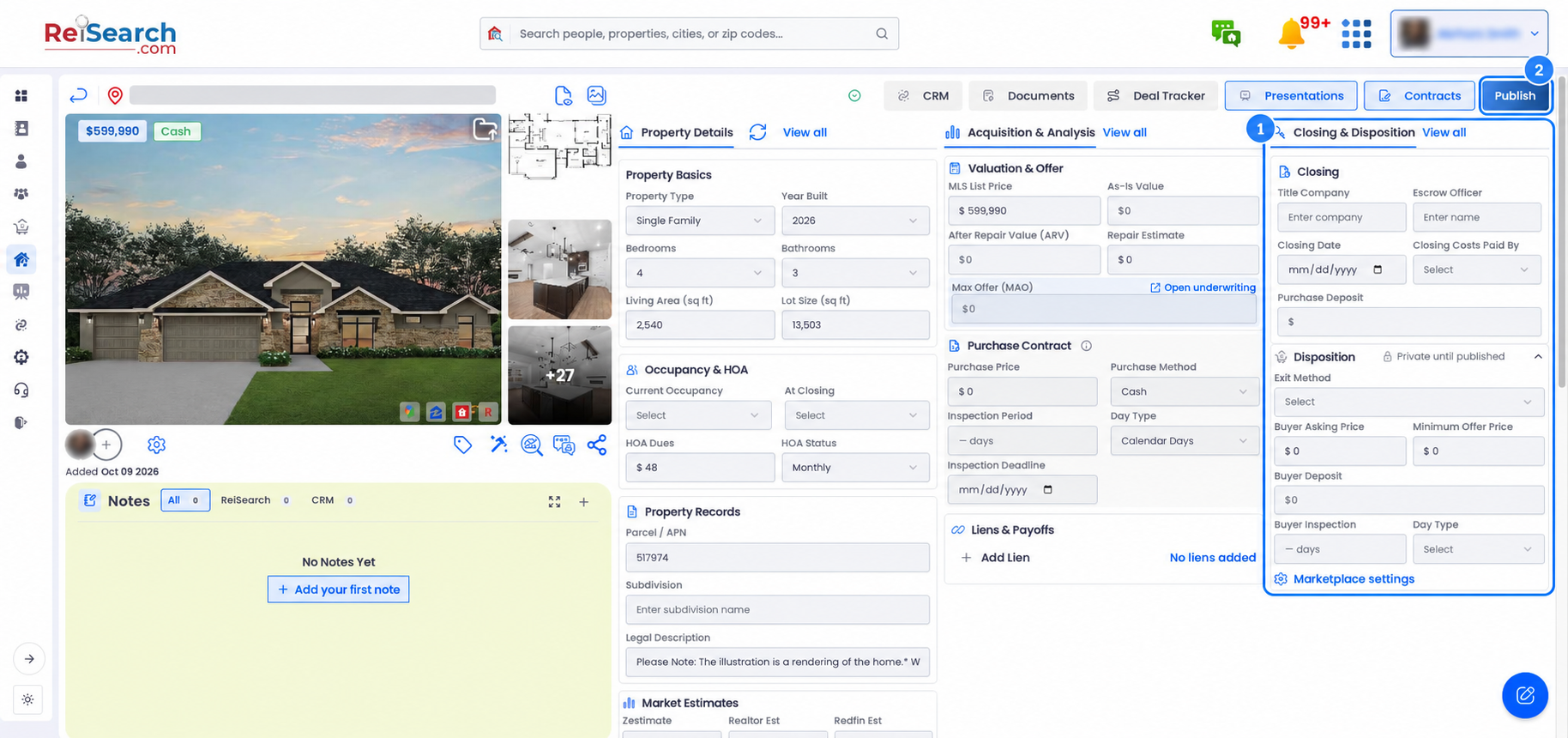
Review the property images and the Property Details, Acquisition & Analysis, and Closing & Disposition sections. Correct any information that is incomplete or inconsistent with the authoritative property, contract, title, and transaction sources.
Do not treat a zero value as an unknown value. A buyer may interpret $0 as an actual term, so fill the intended amount or resolve the missing information before publishing.
2. Complete the disposition terms
In Closing & Disposition, review or enter the terms the buyer needs:
- Exit Method — the intended disposition strategy
- Buyer Asking Price — the price presented to buyers
- Minimum Offer Price — the lowest offer the publisher intends to consider
- Buyer Deposit — the requested buyer deposit
- Buyer Inspection and Day Type — the inspection period and whether it uses calendar or business days
ReiSearch labels the section Private until published while the property remains unpublished.
3. Review Marketplace settings
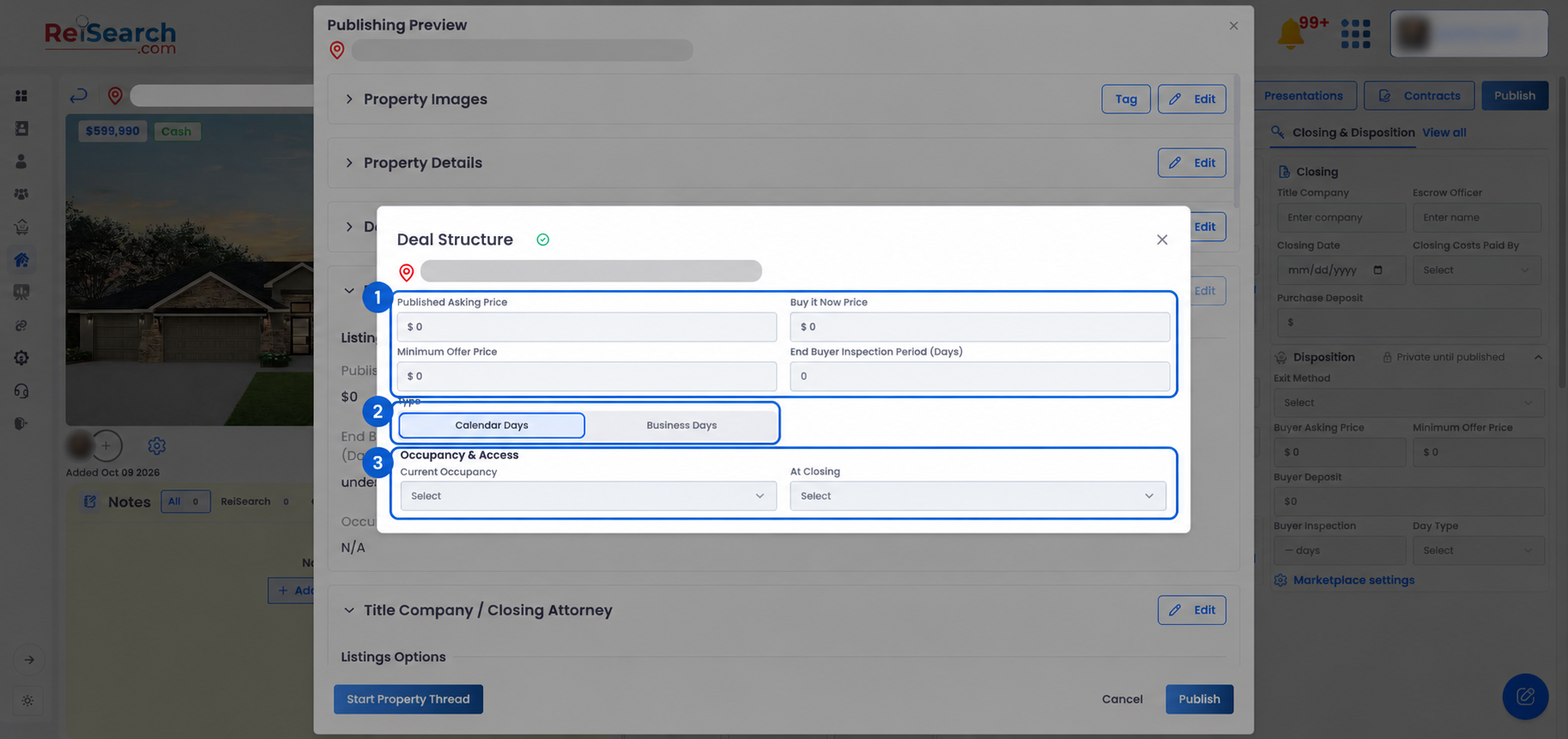
Select Marketplace settings to review the listing-specific terms. The editor can include:
- Published asking price
- Buy-it-now price
- Minimum offer price
- End-buyer inspection period
- Calendar or business day type
- Current occupancy
- Occupancy at closing
Make these fields agree with the contract, underwriting, and the main Closing & Disposition section. When a field is unknown, resolve it instead of leaving an ambiguous zero or placeholder.
4. Open the Publishing Preview
Select Publish at the top-right of the property workspace. This first action opens the Publishing Preview; it does not complete the final publication by itself.
Review each section in the preview:
- Property Images — keep only accurate, useful, and permitted buyer-facing images.
- Property Details — verify the physical and public-record information.
- Deal Structure — confirm contract, pricing, repair, lien, and HOA information.
- ReiSearch Dispo Marketplace — verify published pricing, inspection terms, ARV, repair costs, and occupancy.
- Title Company / Closing Attorney — confirm the closing contacts, date, deposit, deadline, and cost responsibility where applicable.
- Additional Information — review interior, utility, and other property details.
Use the Edit action beside a section when a correction is required. Return to the review after the correction and confirm the change appears as expected.
5. Choose the evidence buyers can see
The preview can include available analysis such as sold comps, short-term rental, co-living, long-term rental, affordable housing, and demographics. Include a section only when the data is relevant and has been reviewed.
Review Redacted/Public Documents separately. Do not expose contracts, signatures, account details, private contact information, or other sensitive material. A file name that says “redacted” is not proof that the file itself is safe to publish.
6. Read the agreement and confirm who is involved
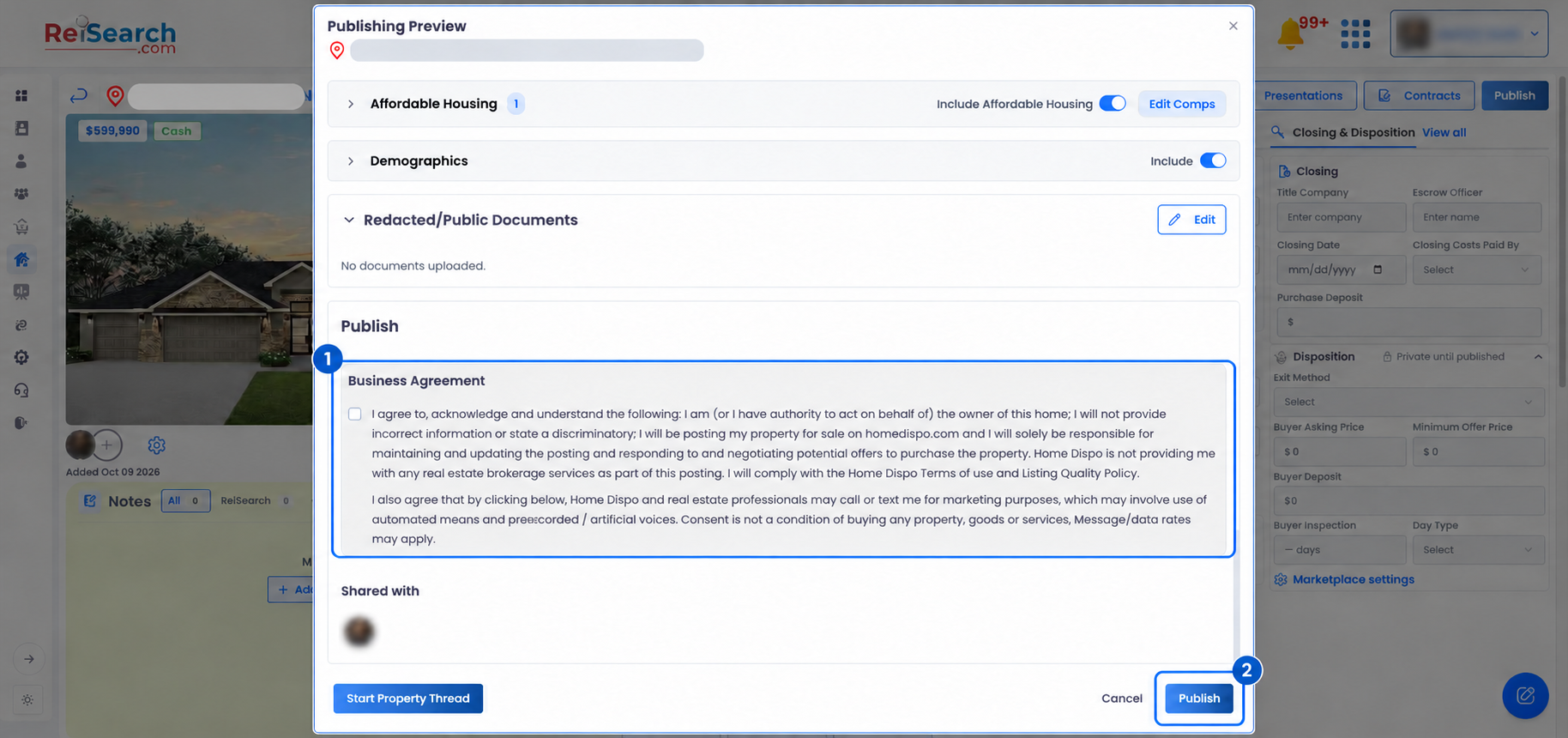
At the bottom of the preview, read the current Business Agreement in full. It describes the publisher’s authority, responsibility for the listing and responses, the marketplace posting destination, and communication consent. The exact agreement shown in the account controls; do not rely on a summary or an older screenshot.
Also review Shared with so you understand which collaborators are connected to the property. Start Property Thread can be used when the team needs to resolve a question before publication.
7. Publish only after the final review
When every section is accurate, the public documents are safe, and you agree to the current terms, select the agreement checkbox and then the final Publish button.
The checkbox and final Publish action create the external consequence. If you are not ready to make the property available, select Cancel and return to the workspace.
Confirm the result
Return to the Dashboard and open Posted Properties. Confirm the property appears there, then review the buyer-facing listing as a viewer would. Check the images, visible terms, included analysis, documents, and any contact or address behavior before distributing the listing further.
Use Address Requests and Offers on the Dashboard to review marketplace activity connected to published properties.
If something does not work
- Publish opens a preview with
$0,N/A, orundefined: Cancel, return to the relevant property or Marketplace settings, complete the missing information, and reopen the preview. - The property is still private: Confirm that the final agreement checkbox was selected and that the final Publish action completed successfully.
- The wrong information appears in the preview: Use the section’s Edit action or return to the property workspace, correct the source field, and review again.
- A comp or analysis section should not be public: Turn off that section in the preview before the final publication.
- A document contains private information: Remove it from the public package, create a properly redacted copy, and inspect the exported file before adding it again.
- You cannot edit or publish the property: Confirm your property permissions with the owner or workspace administrator.
The Dashboard-to-preview workflow was verified in the live product on October 13, 2026. The final agreement checkbox was not selected and no property was published during verification.