
Group chats and property threads can be managed from the group’s menu. Open a group conversation and click the options menu (the three dots) in its header.
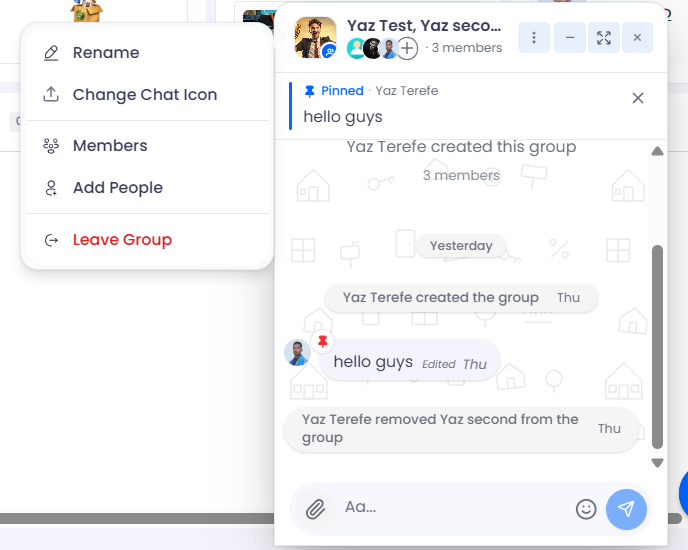
Open the group menu (the three dots)
Rename the group
Set a group photo
See members — admins can remove or make admins
Add more people
Leave the group
Rename the group or change its photo
Choose Rename to give the group a clearer name, or Change Chat Icon to set a group photo. Both update for everyone in the conversation.
View and add members
Choose Members to see everyone in the group, then Add People to bring in more — search by name and select who to add.
Admins: remove members and promote others
In the Members list, group admins have extra controls: remove a member, or make someone an admin so they can help manage the group too.
Leave a group
Choose Leave Group to remove yourself from the conversation. You’ll stop receiving its messages.
Direct messages are different: These controls apply to group chats and property threads. A one‑on‑one direct message has no members list, name, or photo to manage.