
Small indicators around your messages tell you what’s happening — whether a message has sent, been delivered, and been read, plus when someone is typing and how many messages you haven’t seen.
Message status
On the messages you send, a small icon shows how far the message has traveled:
| Indicator | What it means |
|---|---|
| Clock | Sending — the message is on its way. |
| Single check | Sent — ReiSearch received your message. |
| Double check | Delivered — it reached the other person’s device. |
| Eye | Read — the other person opened it. |
| Alert | Failed — the message didn’t send; check your connection and try again. |
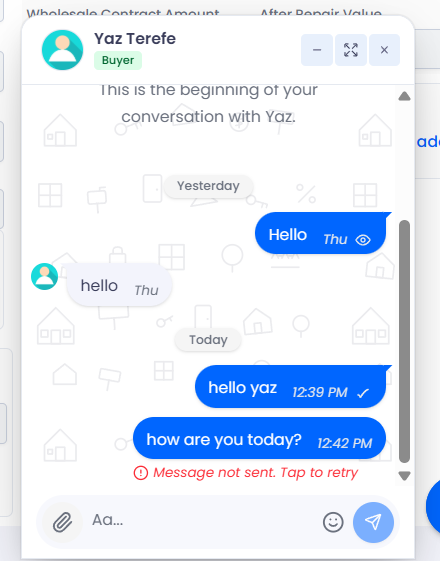
Read — the eye means they’ve opened it
Sent — a single check
Failed — tap the message to retry
Typing indicator
When someone in the conversation is typing, you’ll see animated dots appear — so you know a reply is on the way.
Unread badges and new-message markers
Unread counts appear in a few places: a badge on the chat icon in the top nav, on each inbox tab, and on individual conversations. When you open a chat with unread messages, a marker helps you jump straight to where you left off.