
Messaging lets you talk with people in your network — one‑on‑one, in groups, or in conversations tied to a specific property — without ever leaving ReiSearch. It lives in the top navigation bar, so it’s available from every page.
Chat while you work: Messaging floats on top of the app. You can keep a conversation open while you browse properties, run comps, or build a presentation — nothing closes your chat.
Open your inbox
Click the chat icon in the top navigation bar. A red badge on the icon shows how many unread messages are waiting for you. Click the icon again to close the inbox.
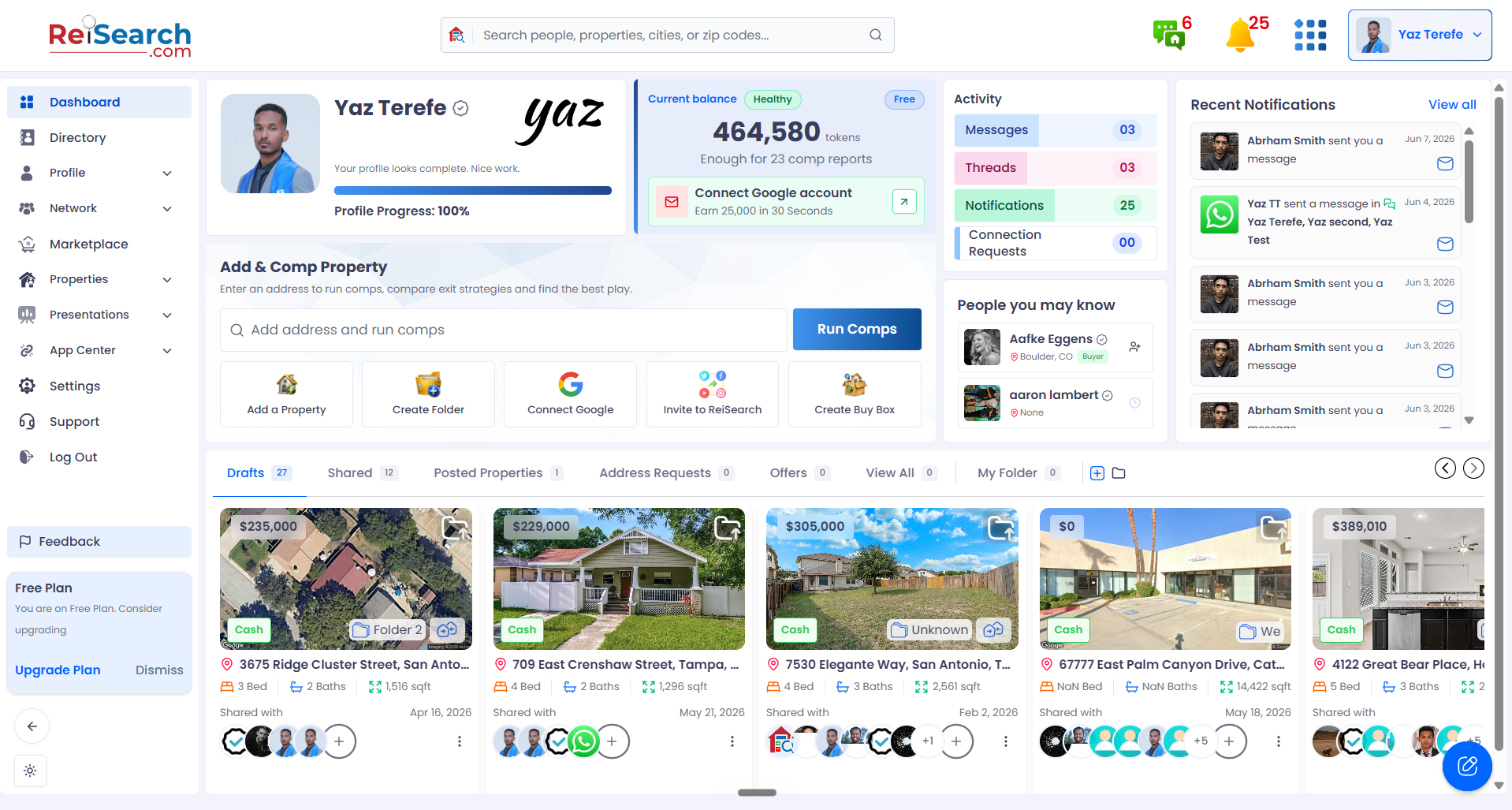
Find the chat icon in the top navigation bar, on the right.
The inbox at a glance
The inbox opens as a panel just below the chat icon. It has two tabs, a search box, and a button to start a new conversation.
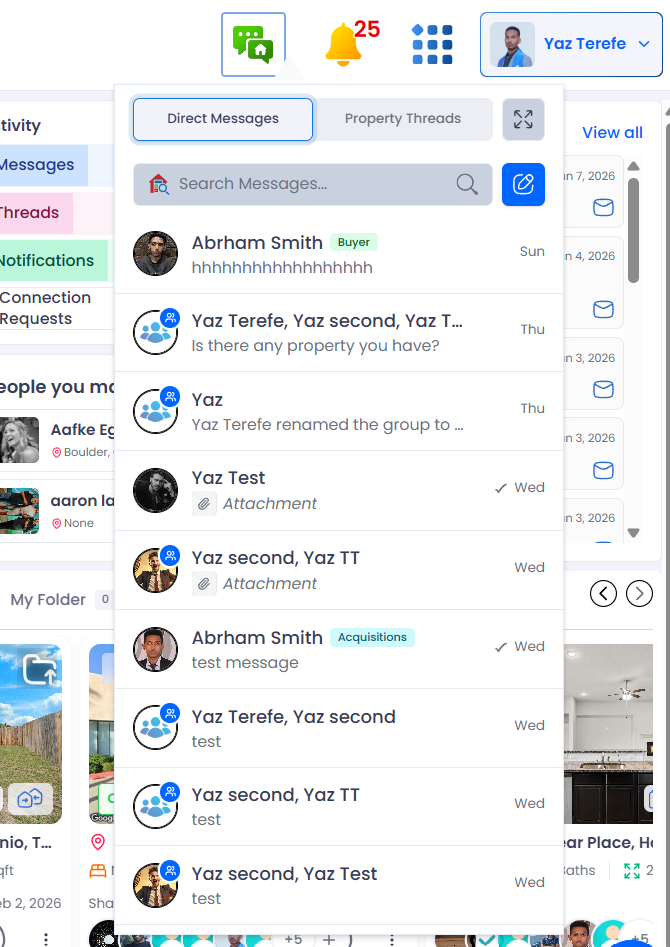
The inbox panel, with both tabs and a list of recent conversations.
Direct Messages vs. Property Threads
The two tabs separate your conversations by what they’re about:
- Direct Messages — your one‑on‑one and group conversations with people in your network.
- Property Threads — conversations attached to a specific property, grouped by property so deal discussions stay together.
Each tab shows its own unread count, so you can tell at a glance whether new activity is a personal message or a property discussion.
Search and start new
Use the search box to find a chat by name — the person’s name for a direct message, or the group’s name for a group chat. It matches on names, not on the words inside your messages. The new‑message button next to it lets you start a fresh conversation — see Start a conversation for the full walkthrough.
Expand to the full inbox
Need more room? Click the expand button in the top‑right of the panel to open the full inbox — a wider, split view with your conversation list on the left and the open conversation on the right. It’s ideal for catching up on a lot of messages at once.
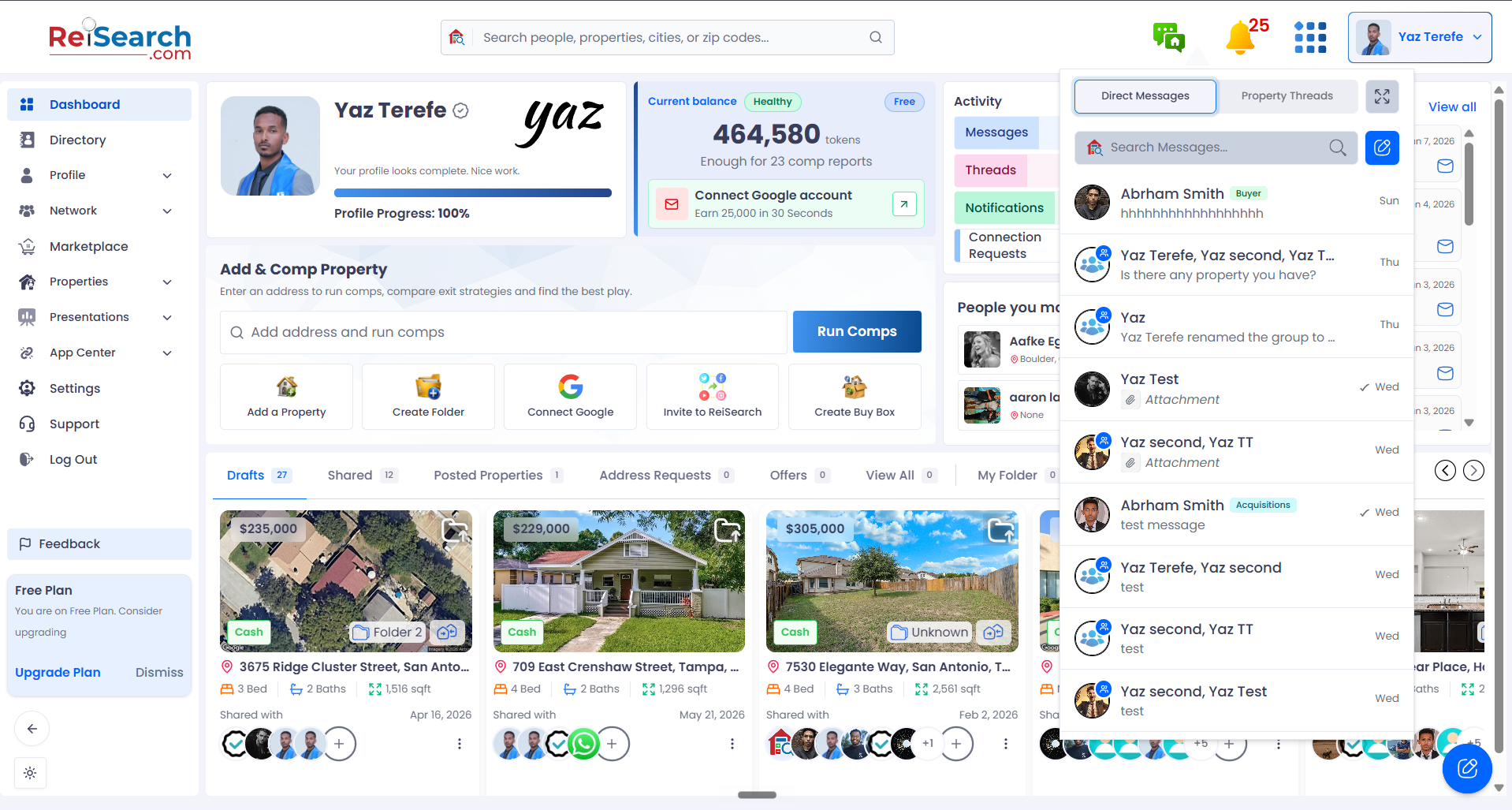
Click the expand button to open the full inbox
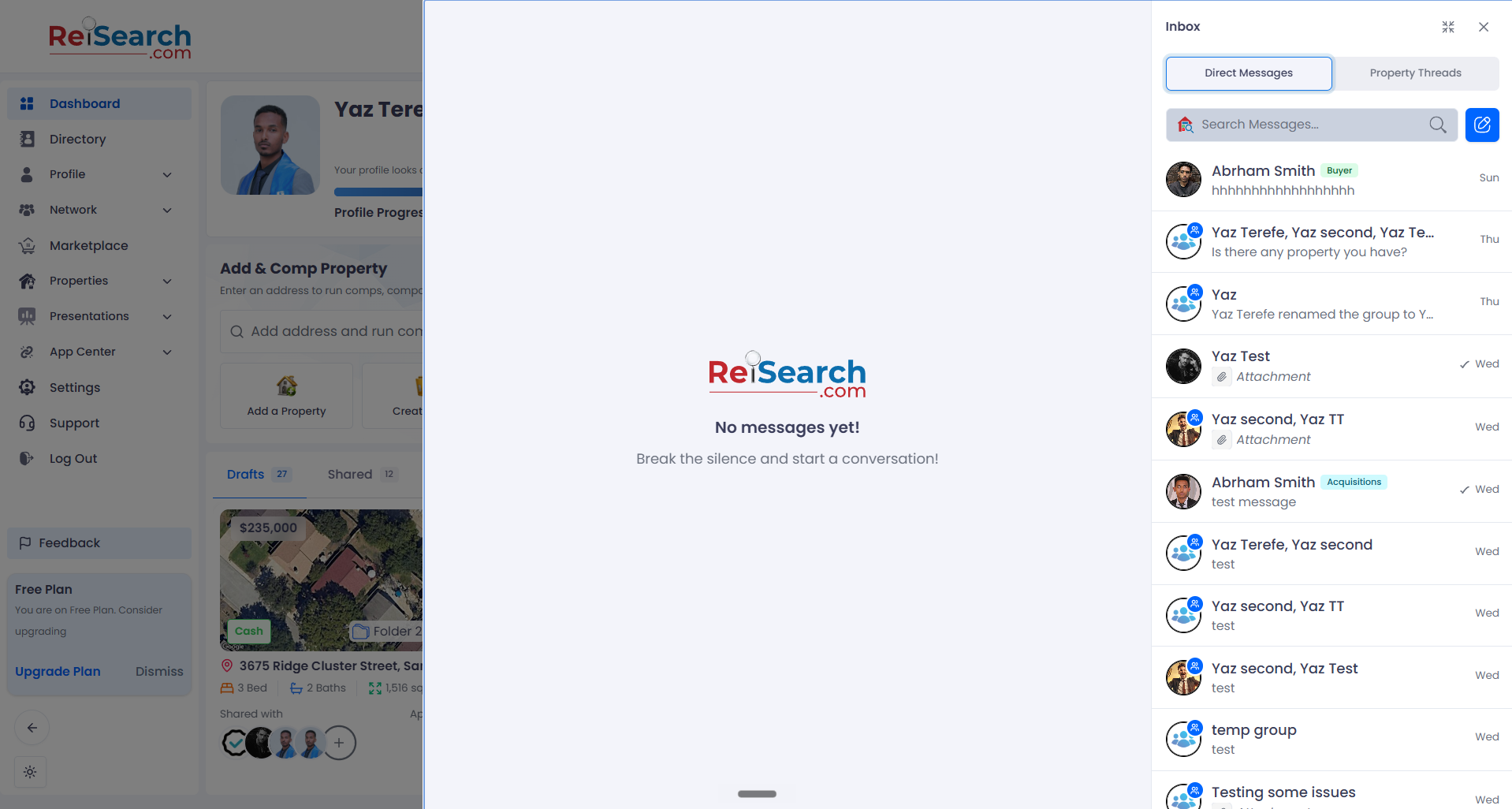
These are your recent chats — click one to open it
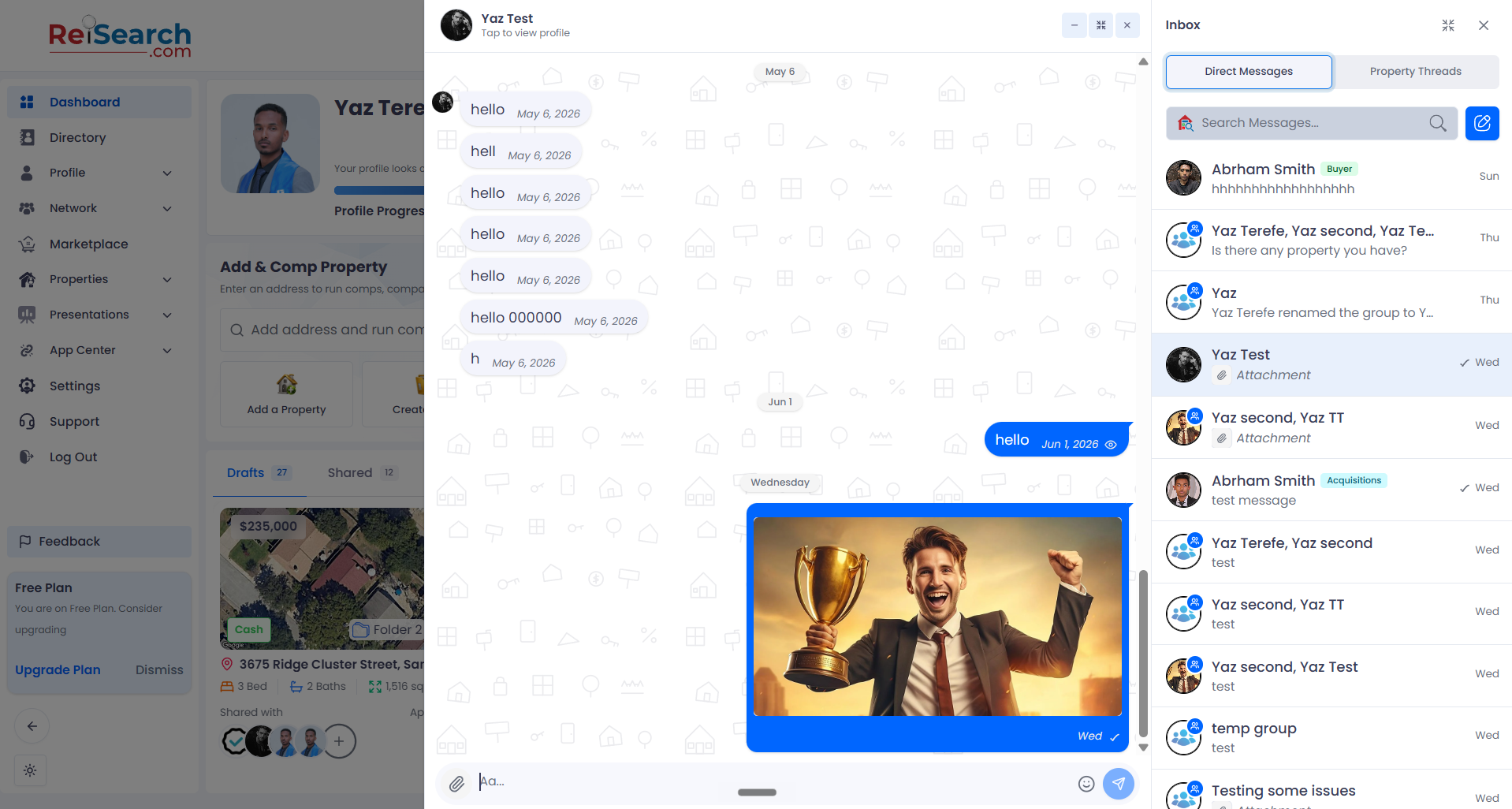
These are your recent chats
This is your opened conversation
Chat windows & the dock
On a computer, opening a conversation pops it into a floating chat window. You can drag it anywhere, open several at once, and minimize any of them — minimized chats tuck into a dock on the bottom‑right edge so they’re one click away.
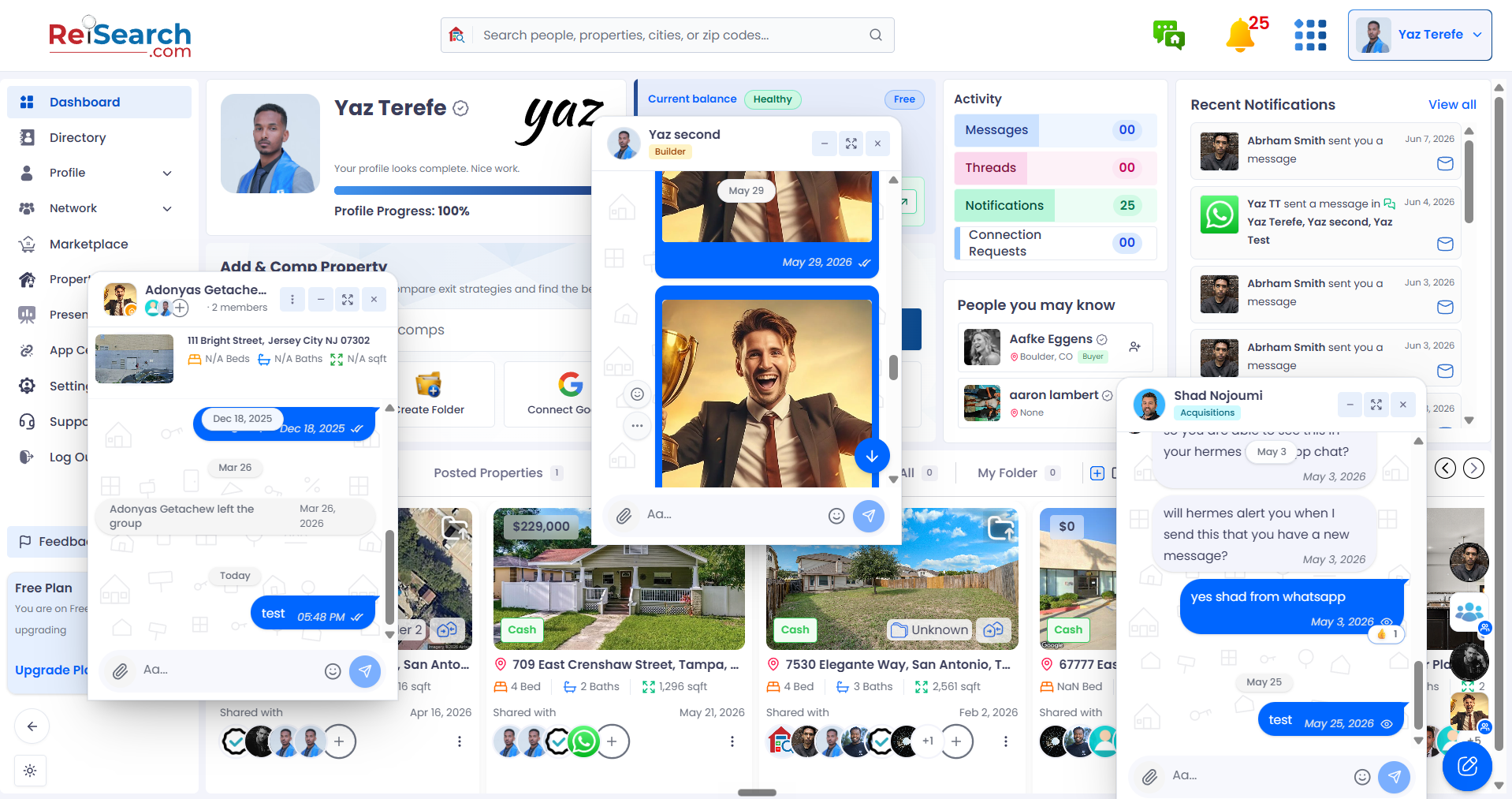
Several chats open at once, with the minimized-chat dock on the right.
On your phone
On mobile, the inbox and conversations open full screen for easy reading and typing. Tap the + button in the bottom‑right corner to start a new conversation, and use the back arrow to return to your conversation list.
About the unread badge: The red badge counts every unread message across all your conversations. It clears as you open and read them, and refreshes each time you open the inbox.
Frequently asked questions
I don’t see the chat icon — where is it?
The chat icon appears in the top navigation bar once you’re signed in. If you’re viewing a public page or signed out, sign in to access messaging.
Can I keep chatting while I use the rest of ReiSearch?
Yes. Chat windows float over the app, so you can move around, run comps, or open properties with a conversation still open.
What’s the difference between the inbox panel and the full inbox?
The panel is a quick view anchored to the chat icon. The full inbox (via the expand button) is a wider split view that shows your list and an open conversation side by side.