
The notifications page (at /notifications, or via the bell menu) is the full view of everything, sorted newest‑first and organized by category.
Browse by category
Tabs across the top let you filter to one kind of activity. Each tab shows its own unread count:
- All — everything together
- Messaging — messages and mentions
- Feed — reactions, comments and mentions on posts
- Property — shared properties, comps and updates
- Network — connection requests and updates
- Monitoring — smart alerts from properties you monitor
- Folders — activity in folders you can access
- Marketplace — address requests and updates
- Account — rewards and account updates
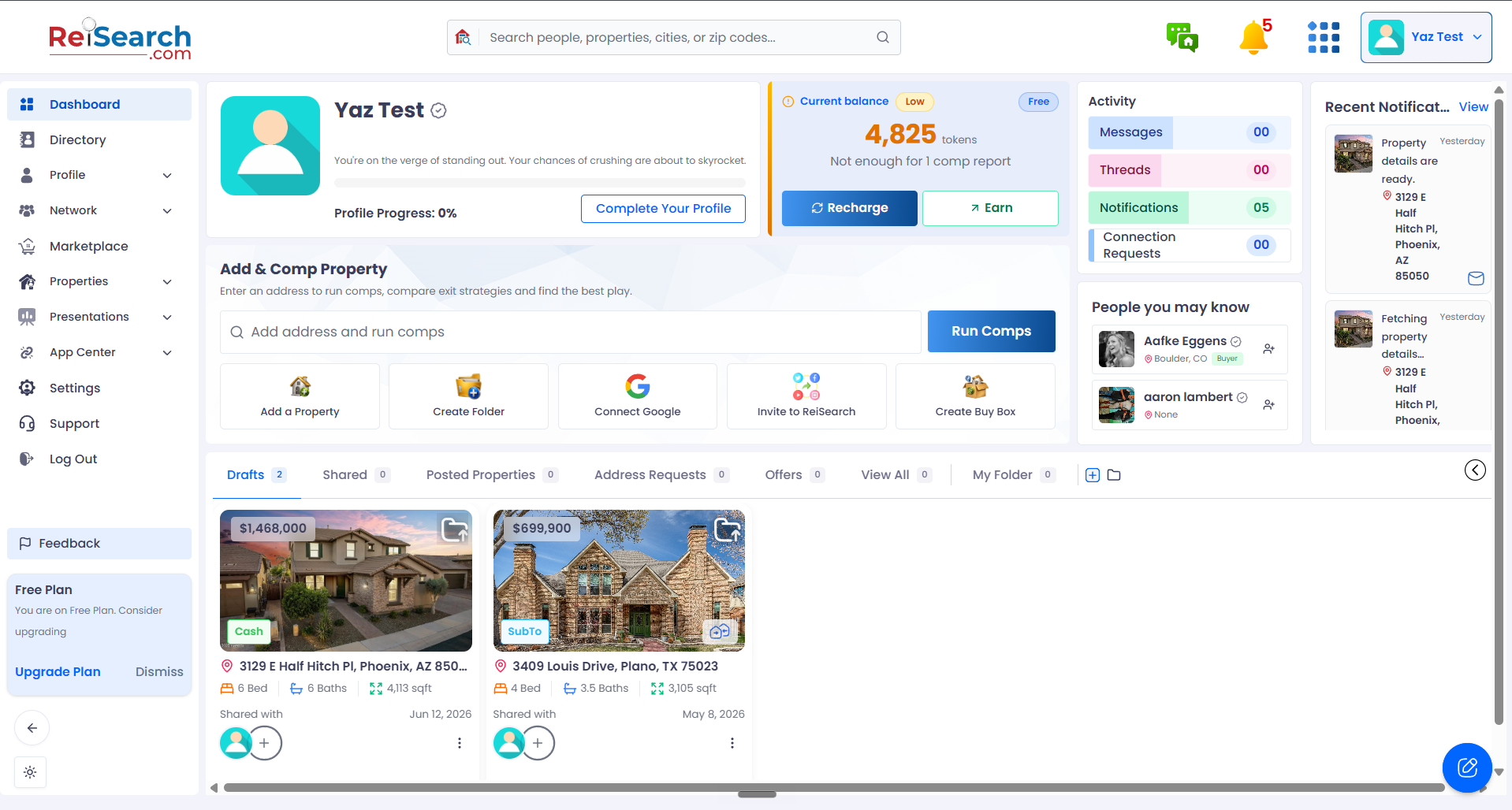
Click the bell
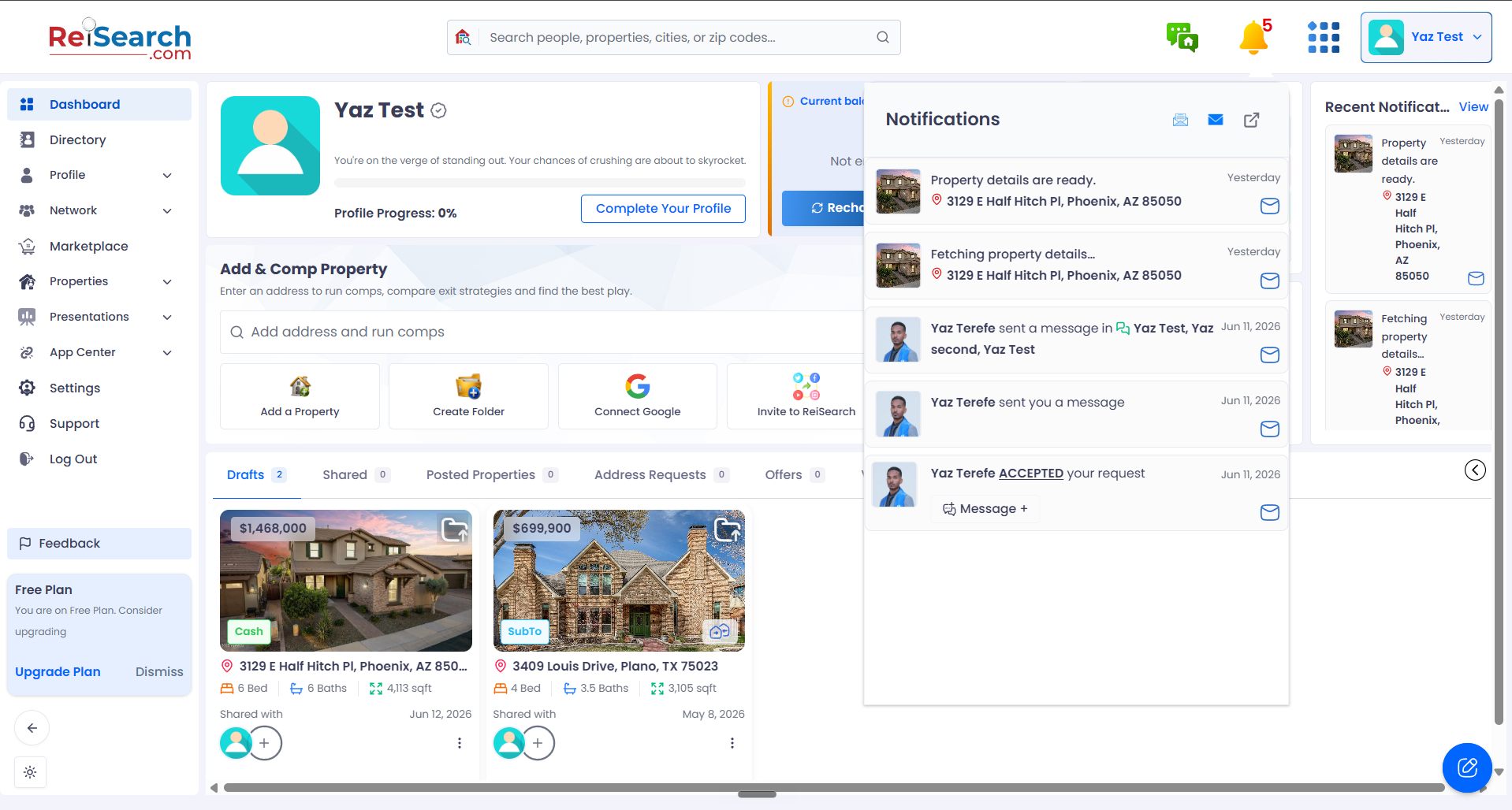
Then open the full page
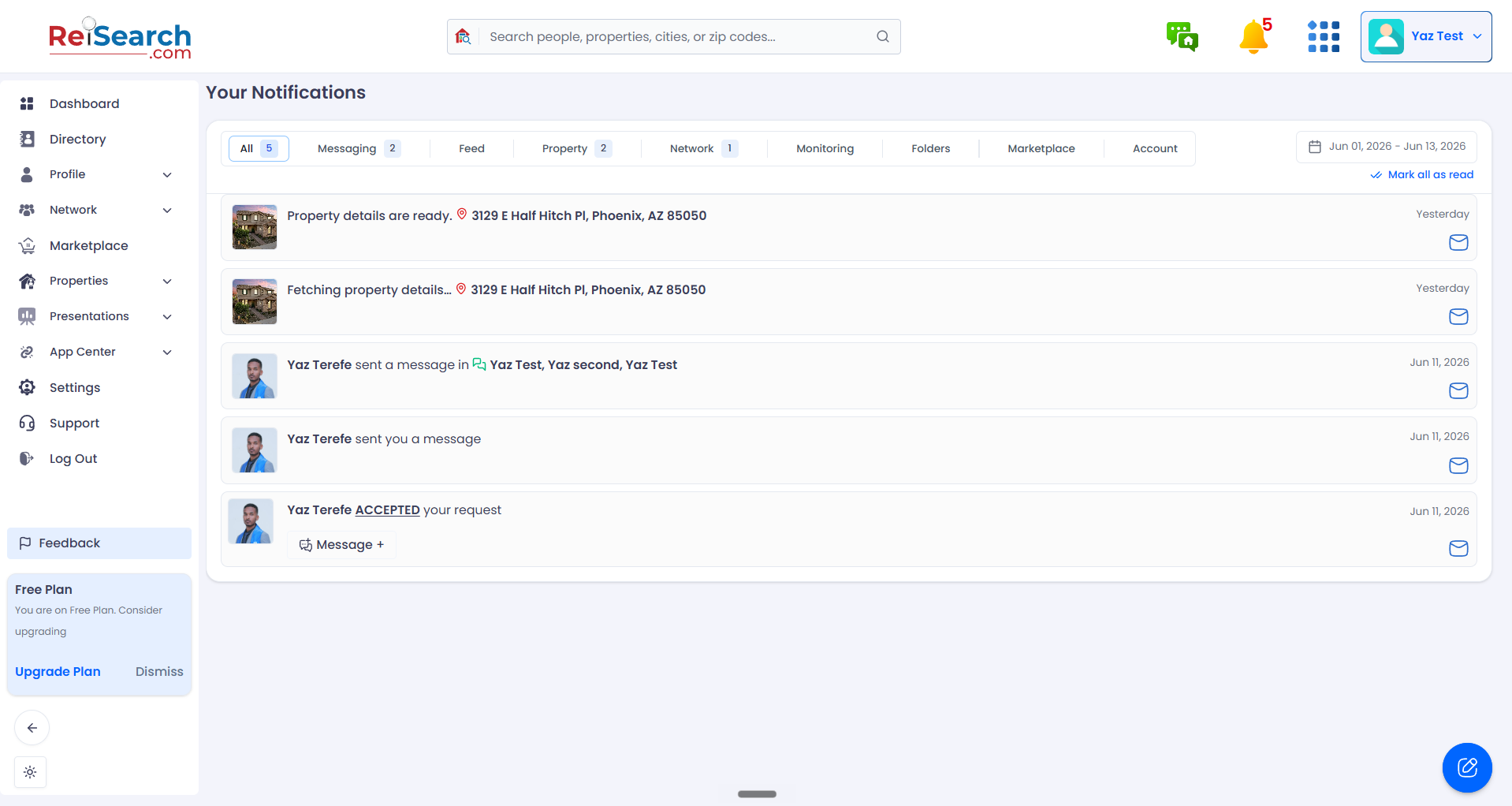
The full notifications page
Filter by category — All, Messaging, Feed, and more
On your phone: On mobile, the tabs collapse into a dropdown at the top — pick a category from the list to filter.
Paging and marking as read
When there are more notifications than fit on one page, use the pagination controls to move through them. If you have unread notifications, Mark all as read clears the badges in one click.