
Notifications keep you on top of everything happening in ReiSearch — messages, connection requests, property updates, monitoring alerts, and more. They show up in three places.
The bell menu
Click the bell icon in the top navigation bar. A red badge on it shows how many unread notifications you have. The menu lists your recent notifications and has quick actions to mark all as read, dismiss all, and open the full notifications page.
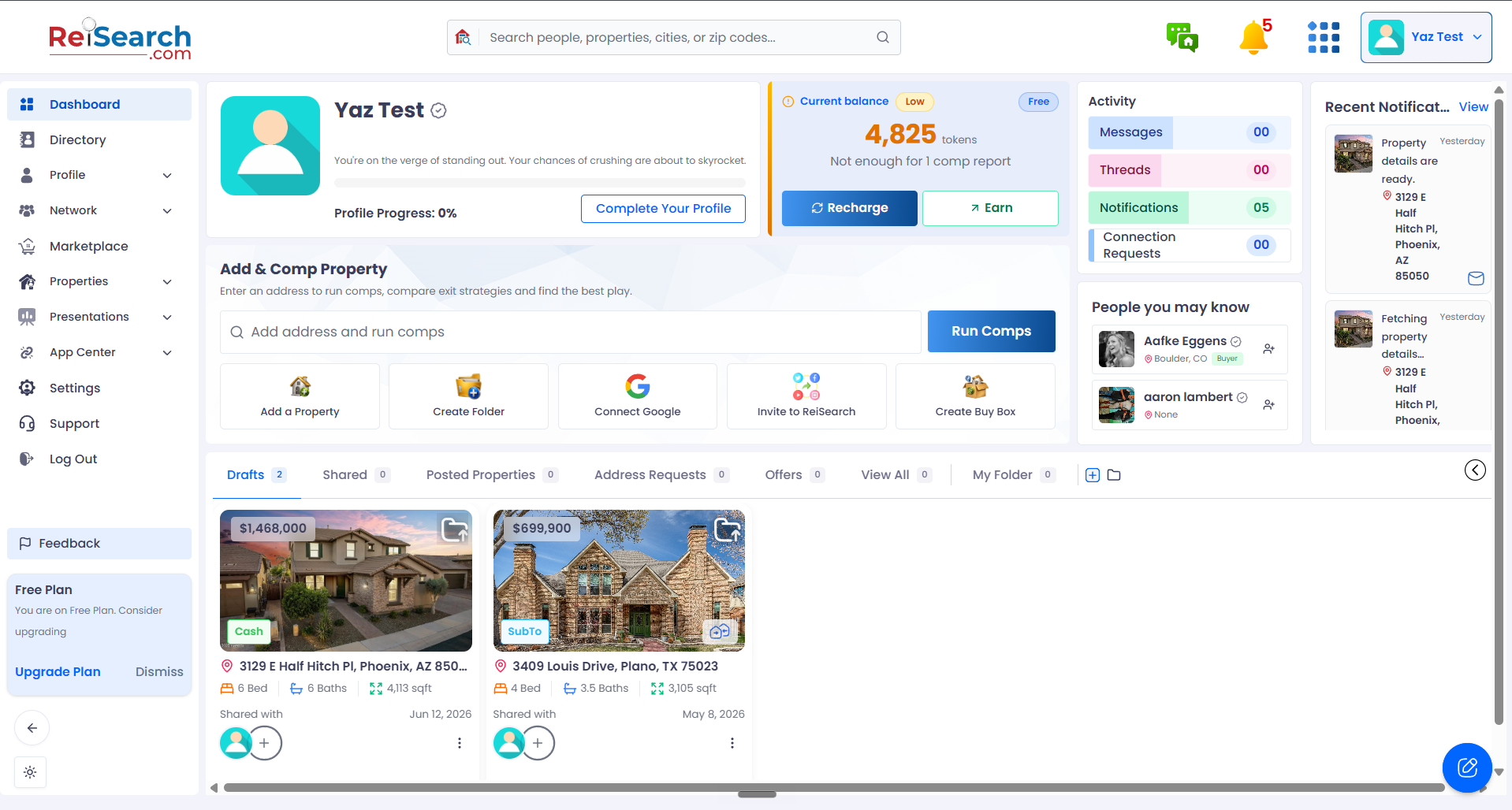
Click the bell to see your notifications
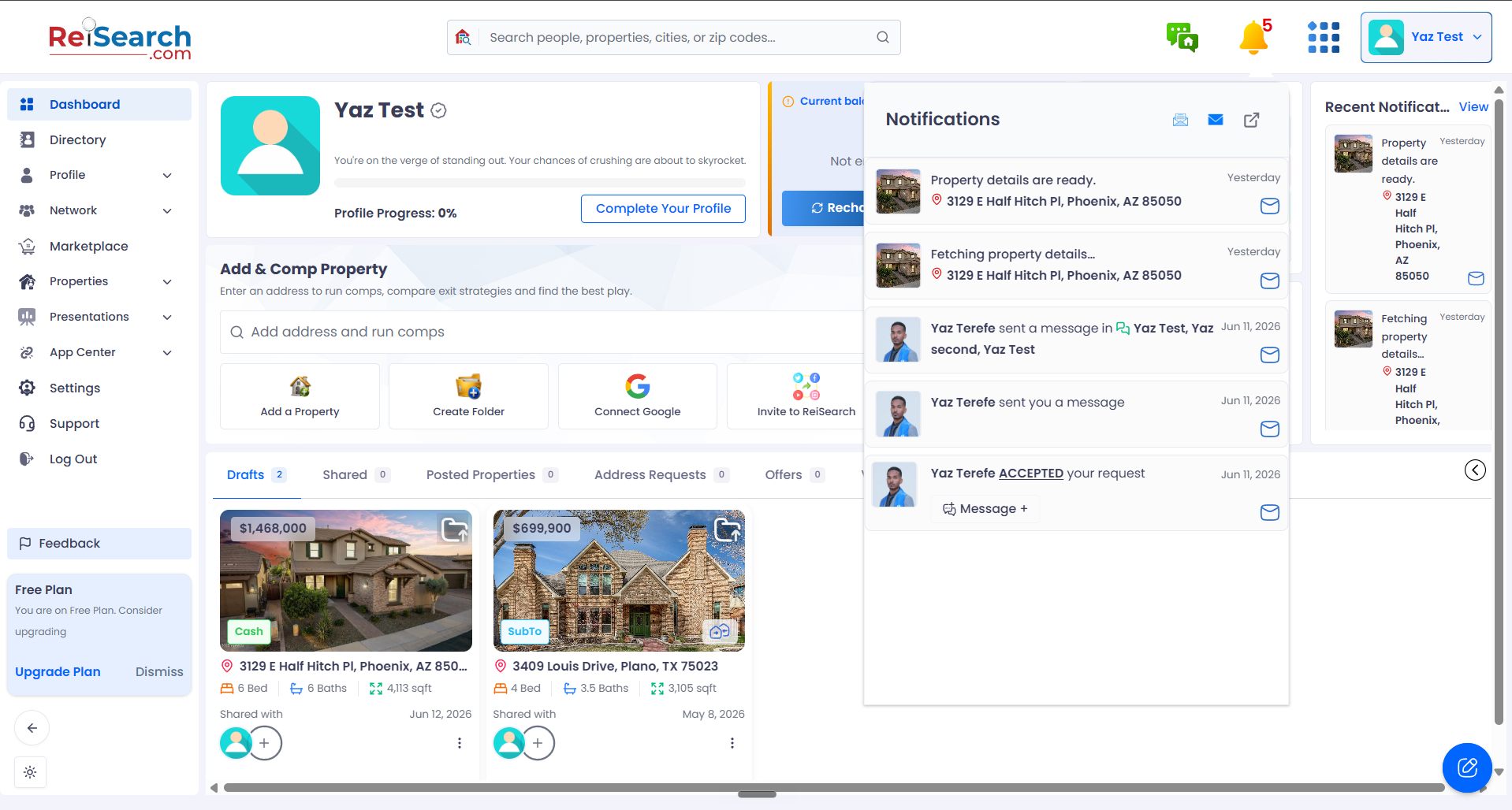
Your notifications open in this panel
Dismiss all — clears them (asks first)
Mark all as read
Open the full notifications page
The notifications page
For the full view, open the notifications page (the link in the bell menu, or visit /notifications). It organizes everything into category tabs so you can focus on one kind of activity at a time — see The notifications page for details.
Real-time alerts
When something happens while you’re using ReiSearch, a small toast pops in briefly to let you know right away. Click it to jump straight to whatever it’s about.
The badge is your unread count: The red number on the bell counts notifications you haven’t read yet. It clears as you read them or use Mark all as read.