
Presentations let you turn a property into a polished, shareable deck — for pitches, reports, and offers. Open them from Presentations in the left navigation.
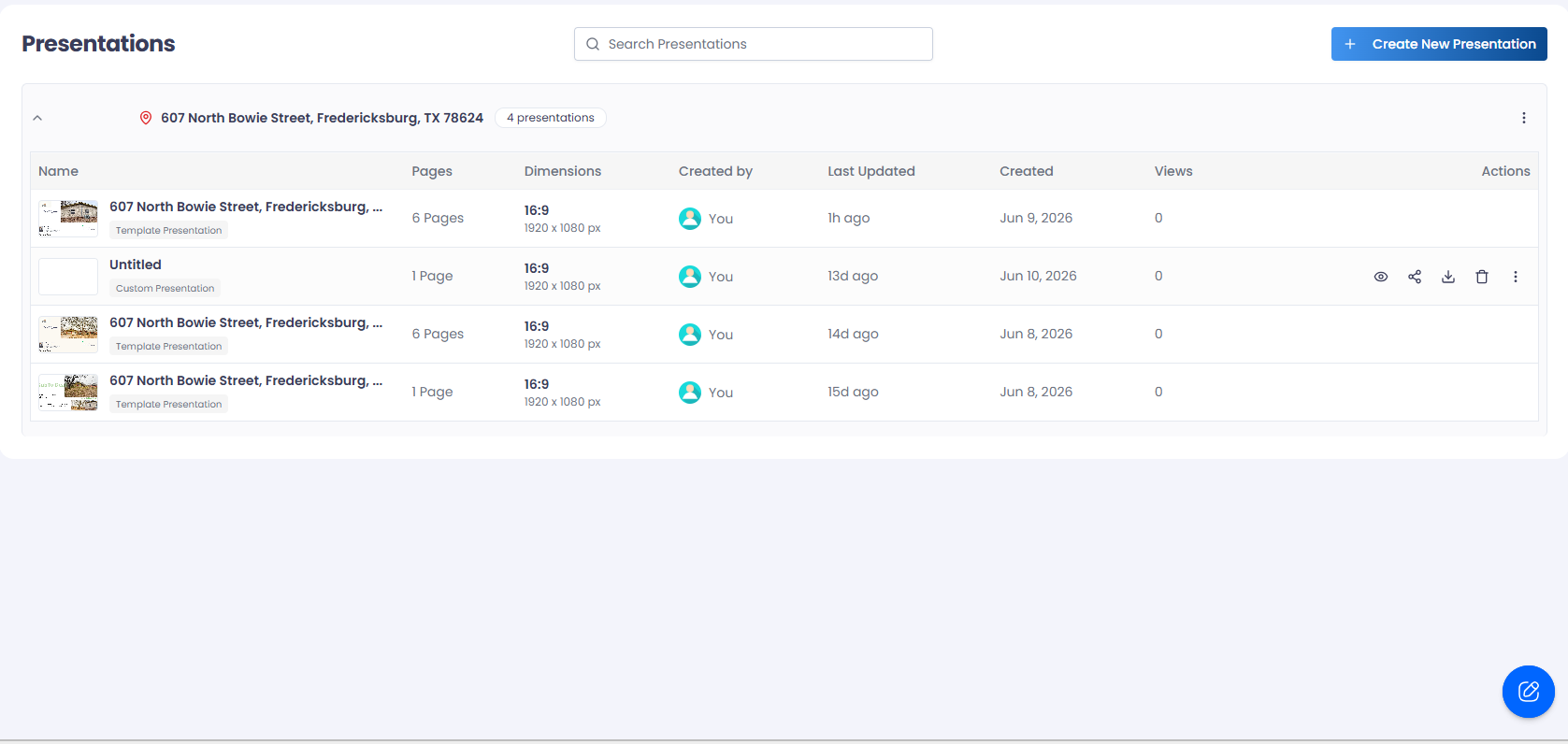
Presentations are grouped by property.
Find a presentation
- Presentations are grouped by property — each property shows its address, a thumbnail, and how many presentations it has. Click a property to expand its list.
- Use the “Search Presentations” box to filter by property address.
- Long list? Click “Load More” at the bottom to load the next page.
Per-presentation actions
Each presentation row has quick actions, plus a “more” menu:
| Action | What it does |
|---|---|
| Preview | Open the deck; the observed action opens the editor. |
| Share | Publish a share link (see Sharing & exporting). |
| Download | Export the deck to PDF or images. |
| Duplicate | Make a copy you can edit separately. |
| Rename | Give the presentation a new name. |
| Save as Template | Reuse this deck’s layout as a template. |
| Delete | Permanently remove it (owner only). |
Note: Creating presentations is a desktop action — the “Create New Presentation” button is hidden on small screens. Owner-only actions (share, delete, duplicate, rename) are disabled for presentations shared with you.
Build more than a first slide
Use Build a complete property presentation for an end-to-end workflow covering data blocks, comparables, documents, charts, renovation evidence, branding, and distribution.