
A useful presentation answers a reader’s questions in order: What is the property? What is the opportunity? What supports the numbers? What should I do next?
This walkthrough takes you beyond opening the editor. Build a deck from the property’s data, add supporting evidence, explain the assumptions, and review the actual output before distributing it.
Choose an outcome before choosing a template
| Audience | Emphasize | A practical slide sequence |
|---|---|---|
| A potential buyer | Property, deal terms, condition, comparable evidence | Cover → property summary → deal structure → comps → next steps |
| An investment partner | Assumptions, costs, market context, supporting material | Overview → investment thesis → cost basis → comps → renovation plan → discussion |
| A property owner | The proposed structure and how the figures relate | Property → proposed terms → seller proceeds → supporting information → contact |
| A reader of a short property overview | A concise, branded summary | Cover → key facts → photos → contact |
These are suggested storylines, not automatic deck types. Include only the slides and figures relevant to the particular property.
Prepare the linked property
- Open the property workspace and verify the address, photos, size, and basic characteristics.
- Review Deal Structure before inserting price, financing, entry-cost, or seller-proceeds blocks.
- Run the appropriate comparable-property analysis and pin the comps you want to present. The editor’s Comparables panel uses pinned results.
- Review repair and renovation estimates if your deck will discuss improvements.
- Add the documents and floor plans you want to use to the property’s document collection.
A blank or missing source value is a reason to review the property, not to replace it with an unsupported number. See verify property information and images.
Start with a public presentation template
For a visually designed starting point, open the populated property and choose Presentations → Use Template → Default Templates. Choose a public design that matches the story and dimensions you need. If prompted, select the underwriting version and choose Generate presentation.
The version determines the costs and renovation photos used in the editor, share link, and PDF. A property without underwriting may leave those sections empty. Follow create from a public template for the exact illustrated steps and the guided walkthroughs for the in-app tours.
For a clean canvas, use Presentations → Create New Presentation, choose an eligible property, and review format, name, dimensions, and underwriting selection before creating.
Build the cover and property summary
Use New Slide → From Slide Library for a starting layout, or begin with a blank slide.
- Expand Property Images in the Elements panel and drag an appropriate photo onto the canvas.
- Add the property title and a short statement of the opportunity.
- Expand Property Details to drag individual values or an available property-summary block onto the slide.
- Add a company logo from Icons & Logos, and position it consistently.
- Check whether the address should appear in the material you plan to share.
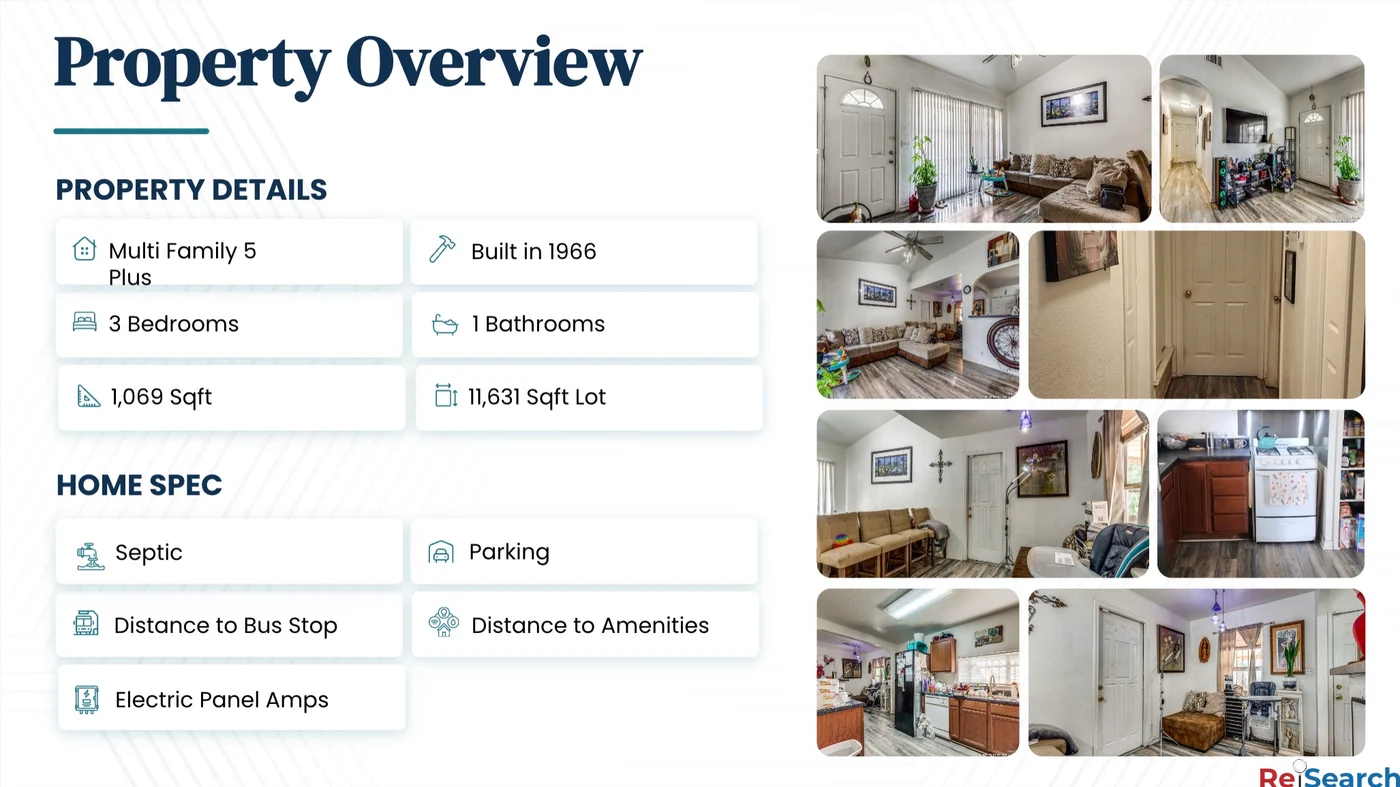
This overview was generated from the public Dispo Presentation Co-Living template for a property with photos and source details. Other slides can still contain sample content or missing values; review the complete deck.
Explain the deal with data-backed blocks
Expand Deal Structure to find a deal summary, entry-cost summary, Net to Seller block, and available individual terms. Drag the item you need onto the slide, then size and position it.
Pair each financial block with a short explanation in your own words. For example, explain what is included in an entry-cost figure and what remains an assumption. Read use property and deal data before turning a figure into a headline.
Use Link Fields for a property value inside text, or Expression for a supported calculation. Bound content and manually typed text behave differently: a typed price or a typed property name must be reviewed when the presentation is reused.
Add evidence with pinned comparables
Open Comparables, select the correct comp type, and choose a Vertical or Horizontal card layout. Drag the selected pinned comp onto the slide. Use a small number of relevant comps rather than shrinking many cards until none can be read.
Add a sentence explaining why each comp matters. Check the property, strategy, price, dates, and relationship to the subject. The presentation panel selects from pinned comps associated with the latest run; it is not a substitute for doing the analysis in the property workspace.
Follow add pinned comps to a presentation.
Show the renovation plan and its cost basis
The Underwriting panel supplies repair and renovation investment blocks, including a cost table and category material/labor information. It is not a generic shortcut for every underwriting return metric.
The Renovation AI panel supplies available before/after pairs and a Before / After Grid. Drag a pair or the grid as a unit. Explain that generated after images illustrate a proposed renovation; keep actual condition photos distinct from proposed outcomes.
Use the renovation and cost walkthrough to connect the visuals to the assumptions they represent.
Add market context, documents, and branding
Use Demographics to choose Zip or City and drag an available chart onto the slide. Use a chart because it supports your explanation, not just to fill space. Some charts or geographic scopes may be unavailable for a property.
Use Documents for available property document items and floor-plan previews. Review the readable content of any material you insert before sharing it.
Use Profile for contact information and an available signature. These blocks can draw from profile data, so check the actual name, phone, email, website, and image that appear. See add documents and demographic charts and arrange, group, and brand slides.
Save and review the entire deck
The current editor supports background saving of eligible owner edits. Still use Save → Save Presentation at deliberate stopping points, wait for the saved status, and allow image uploads to finish before closing the page.
If the presentation belongs to another user, changes cannot be saved to that original. Use an available Save as Template workflow to create your own editable copy.
Review every slide in the editor and check the available preview or exported file. An unpublished deck’s public Preview can be inactive until publication; you can keep editing privately. Check:
- Confirm the correct property and all important source values.
- Check that no field is blank, unresolved, stale, or incorrectly formatted.
- Check that chart labels, document previews, and comp cards remain readable.
- Check cropping, overlapping elements, backgrounds, and contact details.
- Distinguish real photos, estimates, assumptions, and generated renovation proposals.
Publish a link or generate a file
For a link, use Share → Share Link. Choose password protection and expiration when appropriate, check Show Property Address, then publish or update the link. Link management is an owner action.
For a file, use Download File. PDF supports a full deck or selected pages; PNG and JPEG export a single page. Check address and contact options, generate the export, and inspect the downloaded file itself.
A downloaded file is a snapshot. Updating the deck or disabling its public link does not replace files that recipients already downloaded.
Continue with publish a share link, export PDF and images, or save a reusable template.
When something is missing
| What you see | Where to check first |
|---|---|
| Property fields have no values | The linked property record and the selected field |
| No comparables appear | Comp type, the latest run, and whether suitable results were pinned |
| No renovation results appear | Generate and review renovations from the property’s Underwriting workflow |
| No demographic chart is available | Property location, geographic scope, and data coverage |
| Original presentation cannot be saved or shared | Presentation ownership |
| Export asks you to wait | Allow the latest property data and uploads to finish loading |
A visible panel heading does not always mean a complete tool is available. Build the deck with controls that actually contain usable items; Custom Blocks, Credibility, and Offers are not substitutes for the verified workflows described here.