
Use templates to repeat a useful design while reviewing the content for each property. A template can save layout work; it does not approve the property facts or automatically make every manually typed value reusable.
Choose between a slide and a deck template
| Need | Starting point |
|---|---|
| Add one useful layout to an existing deck | New Slide → From Slide Library |
| Reuse an individual slide you designed | The slide’s Save as Template action, where available |
| Reuse the presentation’s layout and slide sequence | Save → Save as Template |
| Work on your own copy of someone else’s presentation | The available Save as Template workflow and create-copy option |
Pay attention to where you start the save. The header’s Save as Template workflow saves presentation slides; a slide-specific action targets that slide.
Start a whole presentation from a public template
Open the property and choose Presentations → Use Template. In Presentation Templates, choose Default Templates for the public designs. Select a design, review the underwriting version if prompted, and generate the deck. This route creates a whole presentation; the slide library below inserts individual layouts into an existing deck.
See create from a public template for current screenshots and a populated result.
Insert a template slide
- Open the presentation and decide where the new slide belongs.
- Choose New Slide → From Slide Library.
- Browse Default Templates, My Templates, or Favorites.
- Search or use the available category and dimension filters.
- Choose a layout compatible with the deck’s dimensions.
- Insert it and review all resolved content on the canvas.
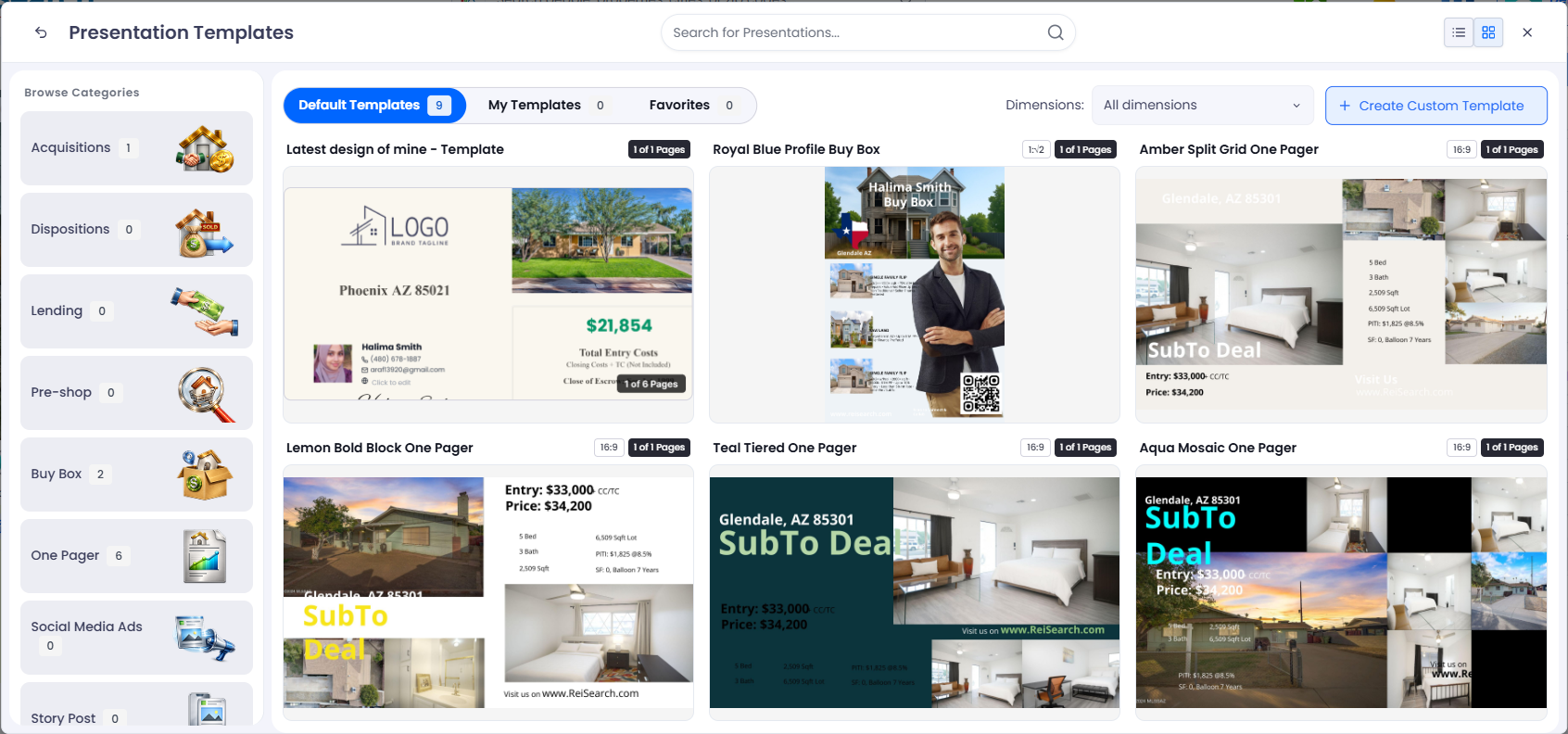
A layout designed for another aspect ratio may need substantial rearrangement. Use the dimensions shown by the library and the deck instead of assuming that every template can be inserted unchanged.
Save a reusable presentation
- Finish a useful layout and remove content that should not be carried to another opportunity.
- Choose Save → Save as Template.
- Enter a descriptive Template Name.
- Choose a Category.
- Decide whether to enable Create a new presentation from this template now.
- Select Save Template and wait for the success result.
The create-now option opens your own editable copy after the template is saved. It is useful when you need a new working presentation rather than continuing to alter the source.
Prepare content for reuse
Property-backed blocks and linked fields are intended to resolve from property data. Literal text and custom images require separate review.
For example, a reusable property summary can combine bound property characteristics with a manually written heading. After applying it to another property, the heading may still describe the previous opportunity even if the bound values have changed.
Check photographs, profile information, logos, document previews, comp selections, renovation pairs, and formulas as well as the obvious property address. Reusing a template for a property without the necessary data can leave missing or unexpected content.
Review the new copy
- Confirm the intended property and presentation name.
- Check all typed labels, values, and custom images.
- Check every resolved field and calculated result.
- Check available pinned comps, document material, and renovation data.
- Inspect dimensions, cropping, and text wrapping.
- Save and open Preview before publishing or exporting.
Resolve common template problems
The template does not fit: compare aspect ratios, then use compatible dimensions or rearrange the slide deliberately.
Some fields are empty: check that the new property supplies the required source data. A template cannot create missing property information.
The old amount or wording remains: determine whether it is typed text rather than a bound field.
The original cannot be saved: only the owner can persist changes to that source. Use a permitted copy/template workflow instead.
Continue with linked fields and formulas or the complete presentation workflow.