
Open the Backgrounds section in the editor’s elements panel to style your slides.
-
Pick a color swatch for a solid background, or a texture thumbnail for a layered look.
-
Need your own? Click “Upload Background” and add a PNG, JPG, or WEBP (up to 10MB).
-
Apply it with “Apply to Slide” for the current slide, or “Apply to All Slides” for the whole deck.
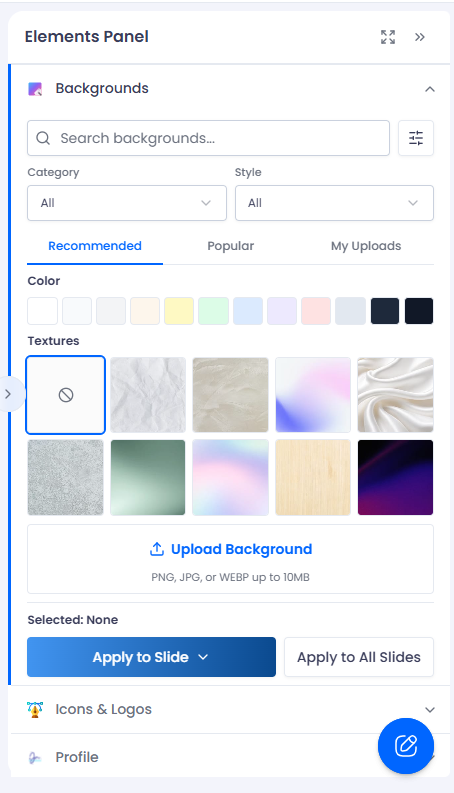
Backgrounds: colors, textures, and apply scope.
Texture gallery
For more options, open the “Texture Gallery” to browse by category, search, and adjust the texture’s opacity. Use “Remove texture” to clear just the texture layer and keep your base color.
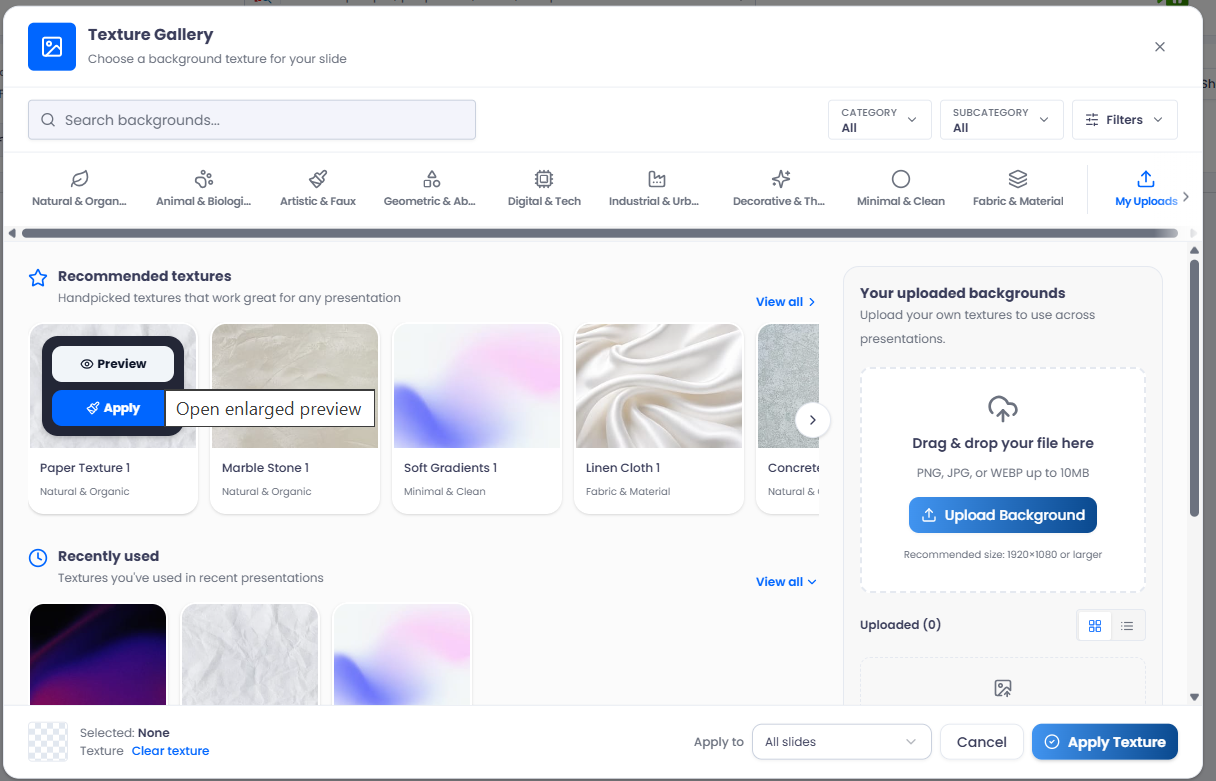
The Texture Gallery — browse, preview, and apply.