
A share link lets recipients open the presentation in a public viewer. Use it when you want to distribute a browser-based presentation rather than sending only a downloaded file. Only the presentation owner can publish, update, or disable the original’s link.
Review the deck before publishing
Save the presentation and allow property fields, images, and other data to finish loading. Use Preview to check the intended property, slide order, deal figures, source material, branding, and contact details.
Read the complete workflow if you are still assembling the presentation.
Create the link
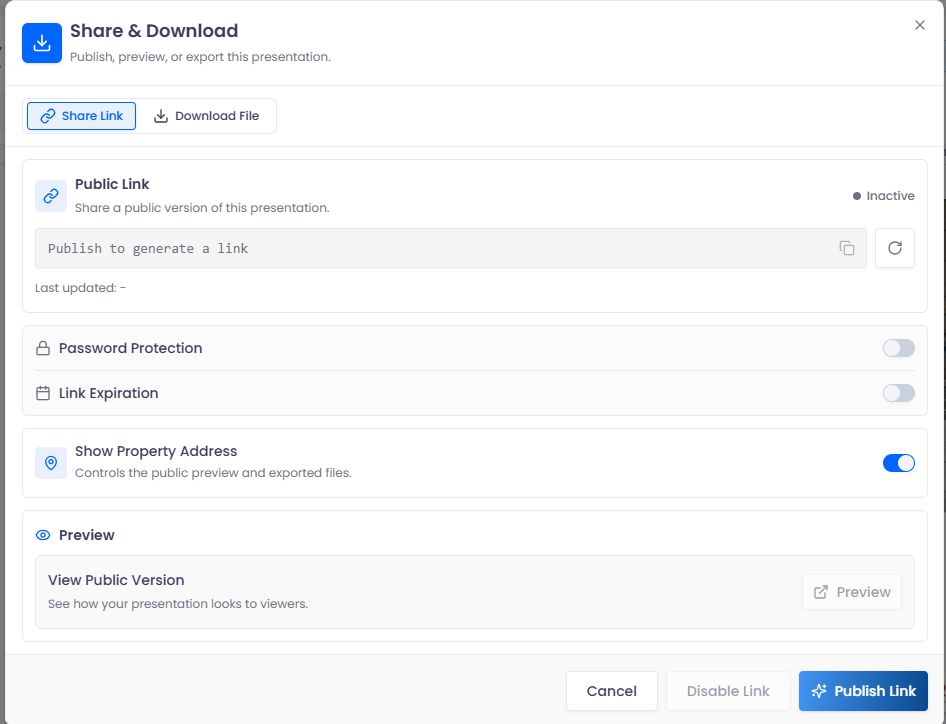
- Select Share in the editor to open Share & Download.
- Choose Share Link.
- Decide whether to enable Password Protection and provide a password.
- Decide whether to enable Link Expiration. Available choices include 24 hours, 7 days, 30 days, and Never.
- Review Show Property Address.
- Select Publish Link and wait for completion.
- Use Copy to obtain the generated link.
Check the recipient experience
Open the public version using the available Preview control, and test the copied link in a separate signed-out or private browser session when appropriate. Confirm the password challenge and actual visible slides, not just the editor’s appearance.
Check for information embedded in typed text, photographs, uploaded images, and documents. The address control is not a substitute for reviewing the content of every slide. See address privacy.
For a recipient walkthrough, see viewing a shared presentation.
Manage the link
Return to Share → Share Link to inspect the current link and its active state. Use Update Link to save changed link settings, or Disable Link to turn off public access.
Check the public version again after changing slides or settings. Do not assume that an old downloaded file has changed just because the presentation or link settings changed.
If your audience needs a fixed version for a specific discussion, generate and inspect a PDF export as a separate output.
Understand access and copies
Publishing, updating, and disabling the original link are owner actions. If the controls are unavailable, verify that you own the presentation. Changes to another user’s deck cannot be persisted to that original simply because you can view it.
Disabling a link stops access through that link; it cannot recall a PDF, image, screenshot, or other copy already obtained by a recipient. Choose the output and settings that fit your intended audience.
Troubleshoot sharing
| What happens | What to check |
|---|---|
| Publish is unavailable | Ownership, required settings, and whether data is still loading |
| A recipient cannot open the link | Copy the current link, check active status and expiration, and verify password requirements |
| A recipient sees the wrong content | Inspect the linked presentation and public view rather than a different editor tab |
| The address is still visible somewhere | Check typed text and embedded image or document content as well as the address setting |
| Updated information is missing from a file | Regenerate the file; previously downloaded files are snapshots |
When asking support for help, describe the symptom and the approximate time. Keep passwords and unnecessary private information out of screenshots.