
Start from the Dashboard
- Sign in at reisearch.com/login. ReiSearch opens the Dashboard.
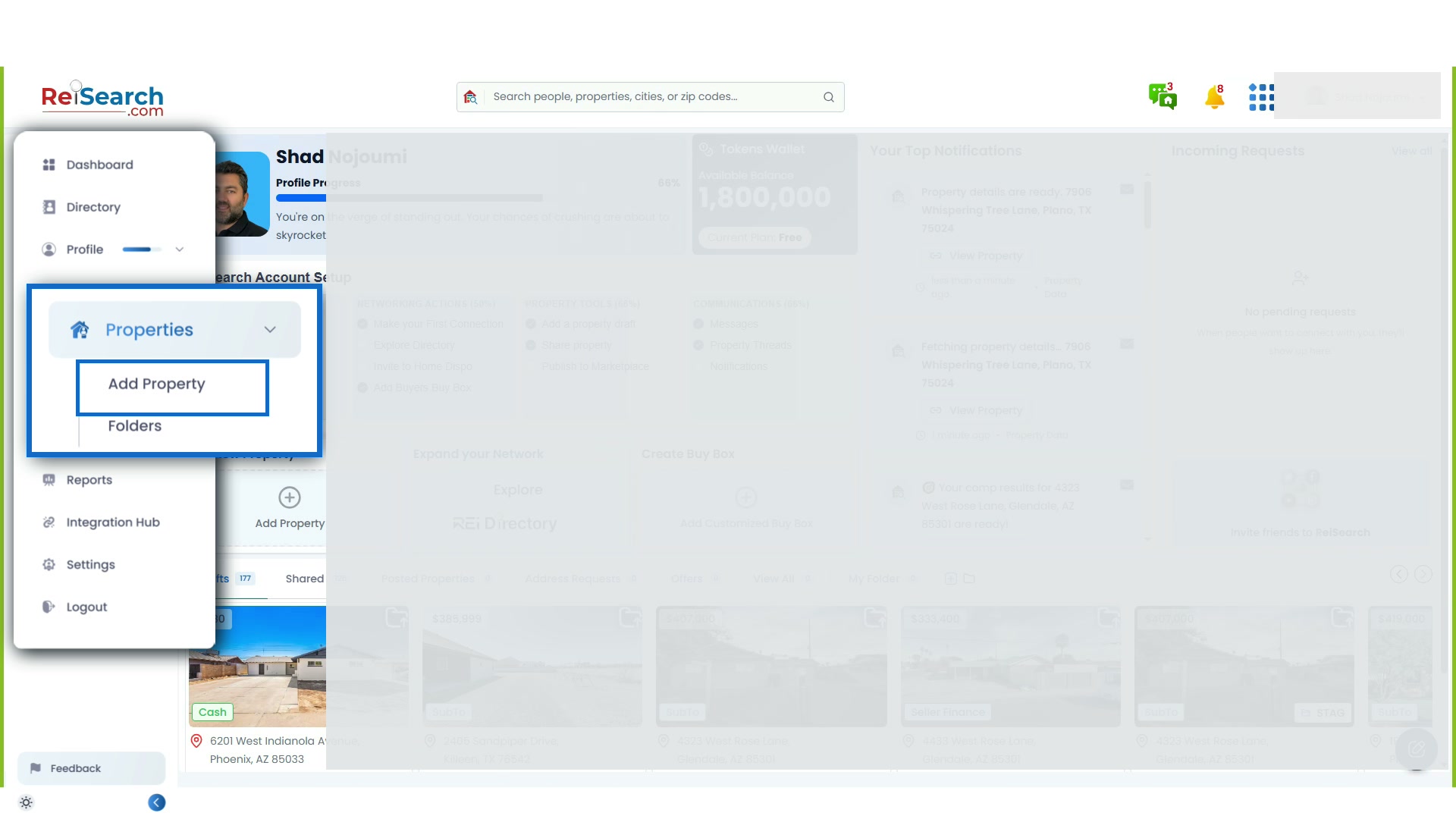
- Open Properties.
- Select the property you want to work on.
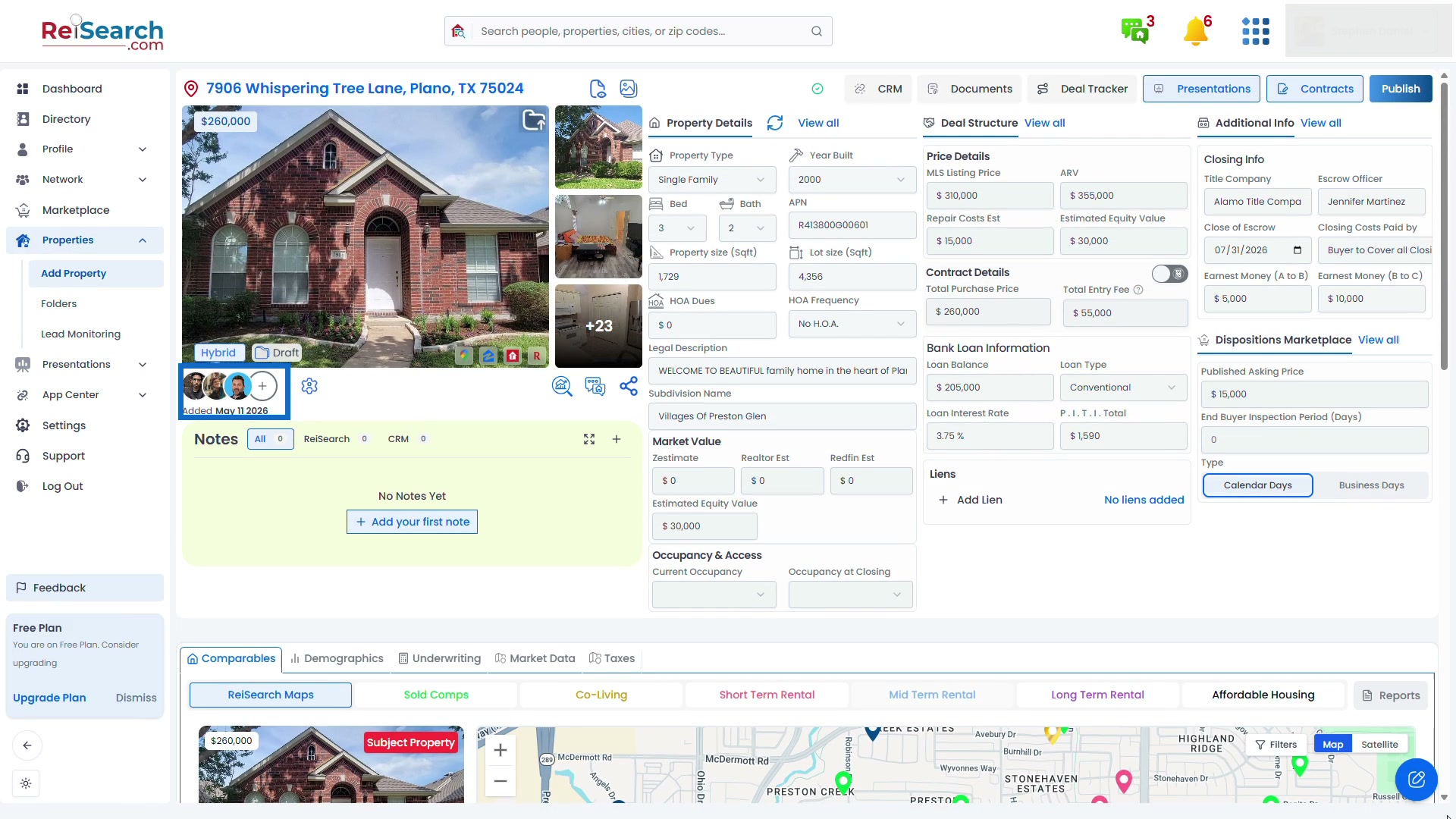
- Find the collaborator avatars below the primary property image.
Navigation path: Dashboard → Properties → Select a property → Collaborator row
Add a person to the property
- Select the + control beside the collaborator avatars.
- Search for the person in your existing ReiSearch connections.
- Select the correct connection.
- Review the permissions that will be assigned.
- Save the property member.
Adding someone to the property is different from connecting with them in the Directory. A connection establishes the relationship; property membership grants access to this specific deal.
Choose permissions intentionally
Property permissions can control abilities such as:
- Viewing or editing the property
- Seeing or accepting address requests
- Seeing or accepting offers
- Adding another person to the property
- Creating or viewing property message threads
- Managing other members’ permissions
Give each collaborator only the access needed for their role. A partner actively underwriting the deal may need editing access, while a person reviewing an opportunity may only need to view the property and its thread.
Use the shared property context
Once access is granted, collaborators can work from the same property record instead of rebuilding the deal from screenshots, spreadsheets, texts, and email attachments. Keep discussions in property message threads and keep property facts, documents, presentations, and analysis connected to the workspace.
Confirm the result
The person should appear in the collaborator row. Ask them to open the property and confirm that they can see or change only what their role requires.
Review permissions again when a person’s responsibility changes or when they no longer need access to the deal.
If something does not work
- The person does not appear in search: Confirm that they have a ReiSearch account and are already one of your connections.
- The + control is unavailable: Your property permissions may not allow adding members.
- The collaborator can view but not edit: Review their property-level permissions.
- The collaborator cannot open the property: Remove and re-add only after confirming the correct connection and access settings; otherwise contact ReiSearch Support.