
What comping means in ReiSearch
Comping is the process of comparing a subject property with other properties that help you evaluate value, rent, demand, or an investment strategy. ReiSearch keeps that workflow inside the property record so the subject, returned comparables, filters, ranking behavior, and selected results remain connected.
The result is a working comparison set—not a final appraisal or an automatic investment decision. Review the underlying property details and use your own judgment before relying on any comp.
The complete workflow
- Open the ReiSearch property you want to analyze.
- Open its comps workspace.
- Choose the comparison type that matches your question.
- Select Run Comps and wait while the run moves through queued and running states.
- Review the subject property and all returned results.
- Search, filter, change views, and sort the results.
- Pin the strongest comparables or move weaker results toward the back.
- If necessary, customize ranking weights under Settings → Rankings.
- Revisit a previous completed run or refresh the comps when newer market data is needed.
Choose the comparison type
The comps workspace exposes separate views for different real estate strategies:
- Sold Comps for sale-oriented comparison.
- Co-Living for shared-housing comparisons.
- Short Term Rental for short-stay rental comparisons.
- Long Term Rental for traditional rental comparisons.
- Affordable Housing for affordable-housing reference data.
- ReiSearch Maps for reviewing the subject and comps geographically.
The interface also contains a disabled Mid Term Rental tab. Do not assume a disabled tab is available simply because ranking settings exist for that comp type.
Understand the returned results
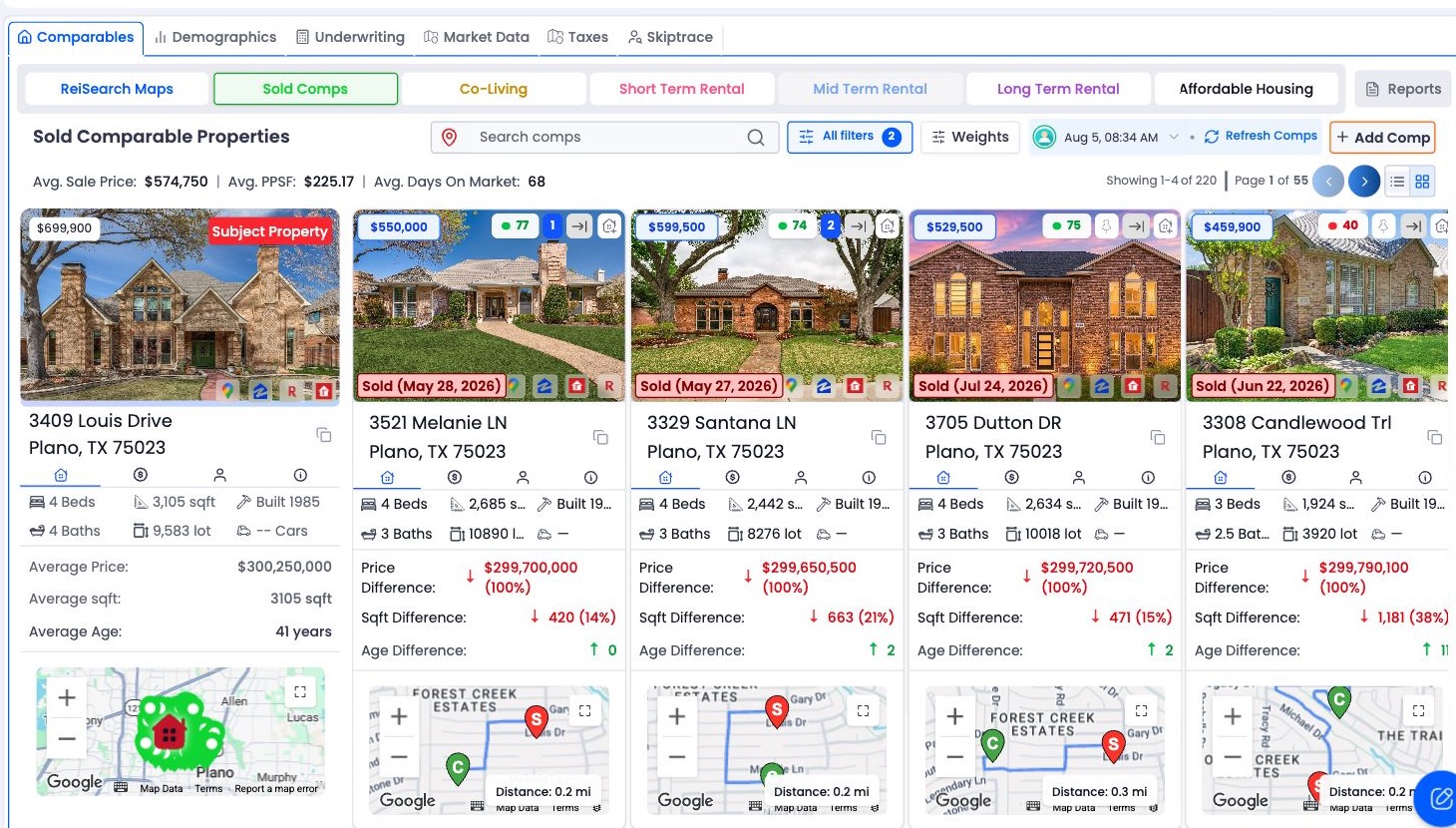
A completed Sold Comps run showing the subject property and its returned comparison set.
Each result can contain its address, listing status, property type, beds, baths, living area, lot size, year built, price, distance, images, source links, and comparison data. Availability varies by source and property.
ReiSearch can also attach a 0–100 similarity score. A higher score means the comparable more closely matches the enabled ranking criteria and their relative weights. The score describes similarity; it does not guarantee market value or investment performance.
Summary statistics can include average sale price, average price per square foot, and average days on market. When one or more comps are pinned, those averages use the pinned set rather than every visible result.
Refine the list
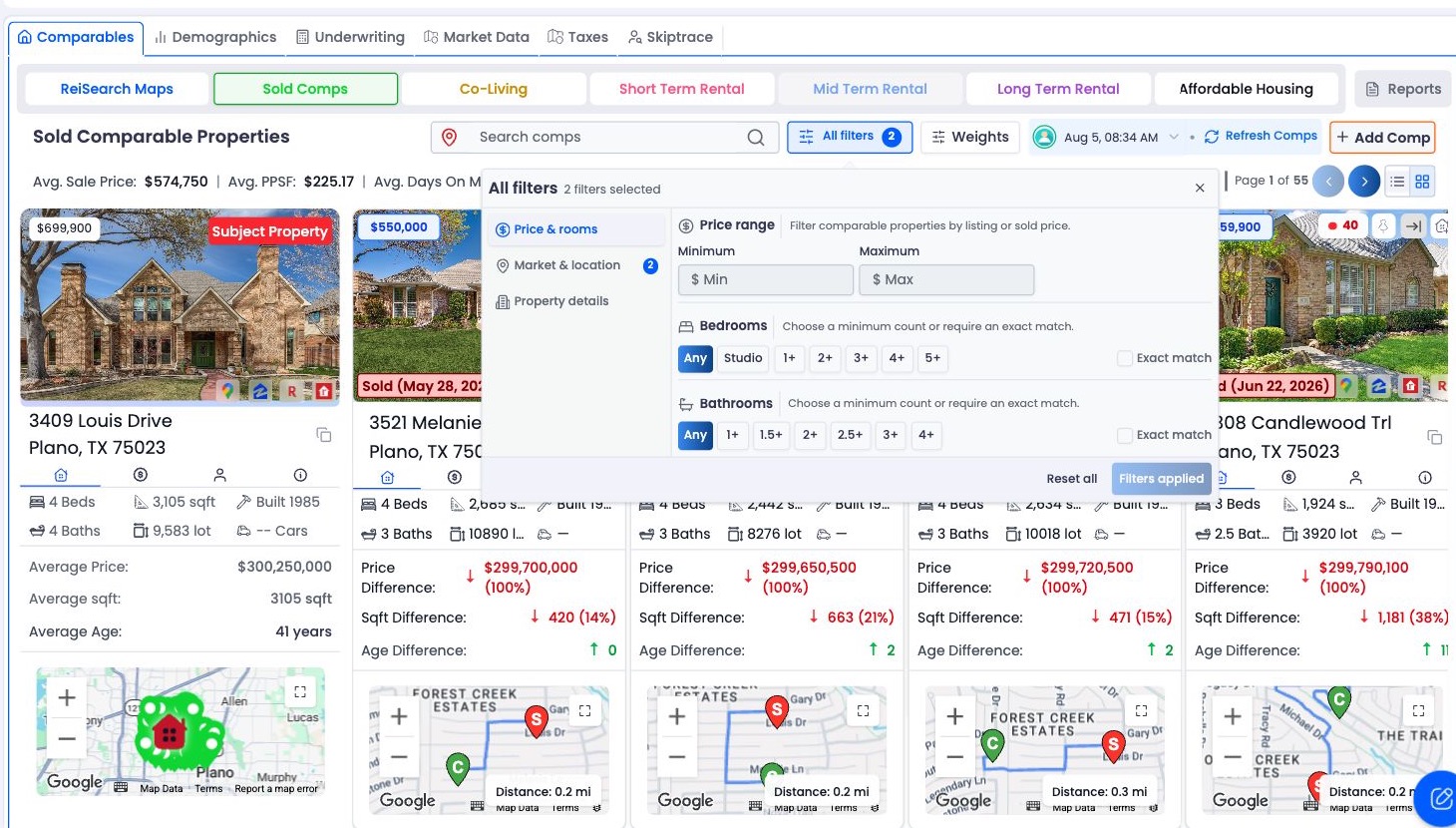
Open All filters to narrow the returned set by property and market criteria.
The filter bar can narrow results using:
- Address search
- Beds and baths
- Price
- Distance from the subject
- Living-area square feet
- Lot square feet
- Sold-date range
- Listing status
- Stories
- Year built
Some controls only apply to relevant comp types. Sold date is used with Sold Comps, while listing-status choices differ between Sold Comps and Co-Living.
Control ranking behavior
Open Weights from the comps workspace to choose a comp type and configure the criteria used for ranking. Available criteria can include distance, square feet, bedrooms, bathrooms, year built, price, lot size, price per square foot, and days on market.
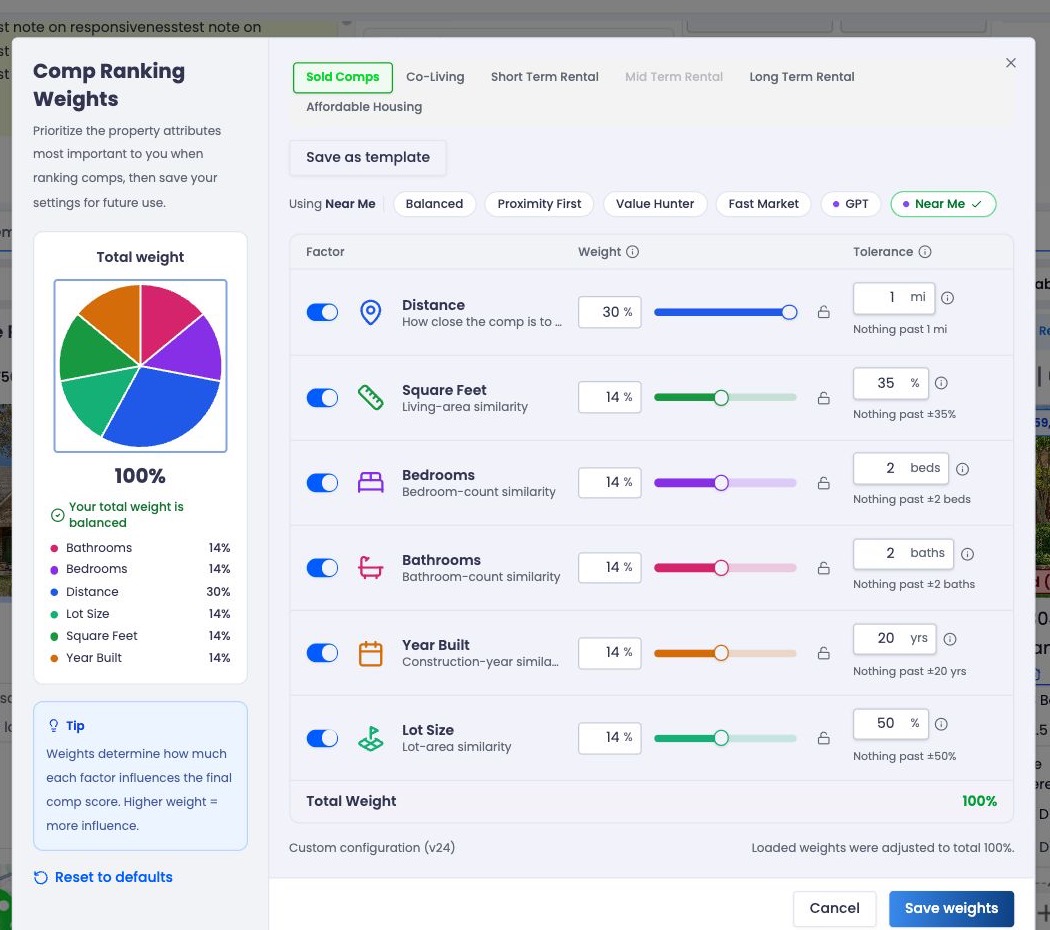
Ranking weights control relative importance, while tolerances control how much difference is acceptable.
Each enabled criterion has two important settings:
- Weight controls its importance relative to other enabled criteria. A weight of 30 matters three times as much as a weight of 10.
- Tolerance controls how much difference is acceptable before similarity for that criterion falls.
Saving custom weights re-ranks existing comps when they reload; it does not require a new comp run. The comps workspace identifies when custom scoring is active.
Curate a useful comp set
Use the actions on each comparable to shape the set you want to study:
- Pin a comp to prioritize it. Pinned results move ahead of unpinned results.
- Move to back to deprioritize a weak result without deleting it. An undo action is available immediately afterward.
- Add Comp to attach a specific valid US address to the selected run and comp type.
- Use the run selector to revisit earlier snapshots instead of replacing your understanding of what changed.