
Start with a property that already has useful information, then choose a public design. This walkthrough uses 703 Crestview Drive and the public Dispo Presentation Co-Living template. The generated example has eleven slides; the property overview below shows actual property photos and source details.
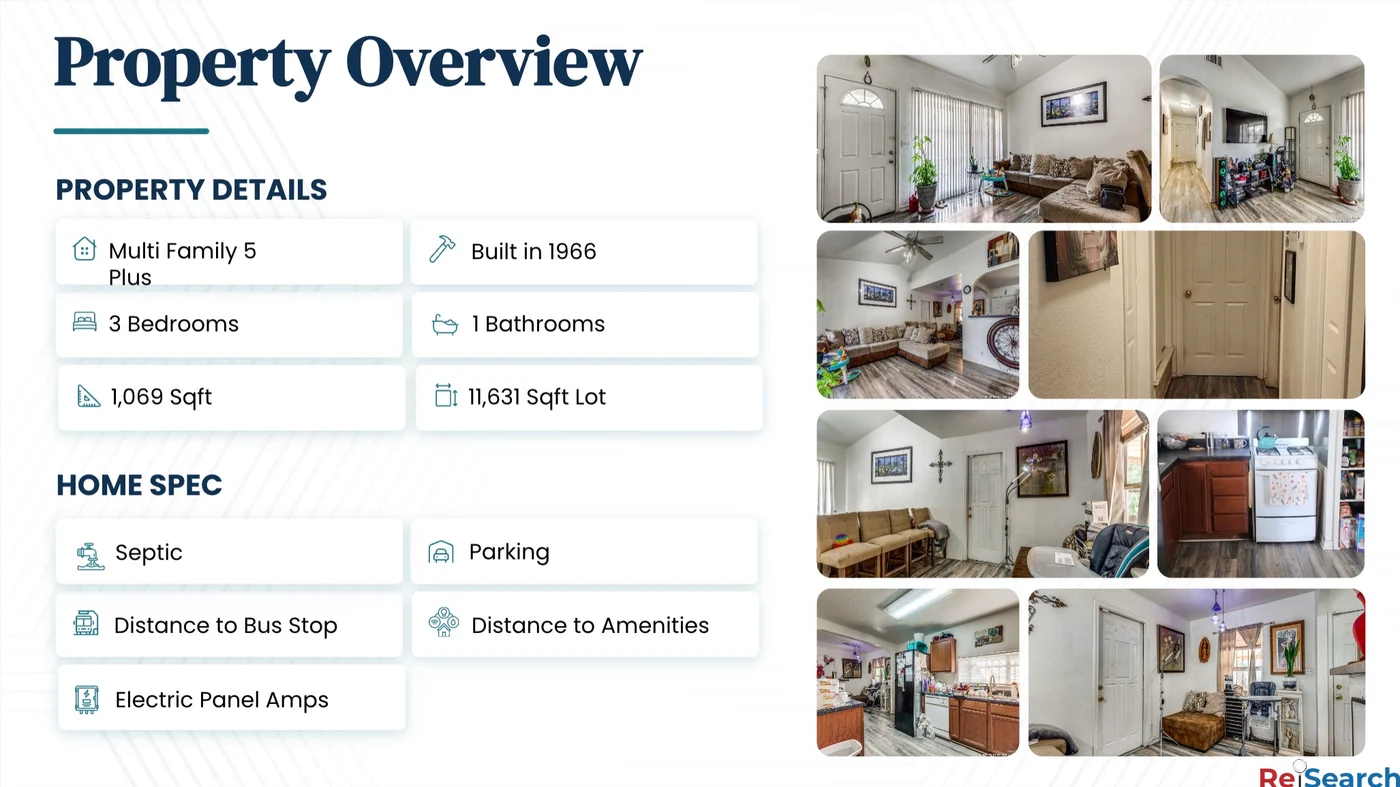
Actual generated slide from the private example. A populated overview does not mean every financial or strategy slide is ready to distribute.
1. Choose a property with usable data
Open the property workspace. Verify its address, photos, bedrooms, bathrooms, and area against the source record. Review Deal Structure and underwriting if you plan to include financial claims, costs, or renovation results.
Our example had photos and basic characteristics available. Several financial fields were missing or zero, so those slides still needed work. Choose a property with the information your audience needs; a polished layout cannot supply missing evidence.
2. Open the property’s Presentations tool
Select Presentations in the property’s toolbar. In the dialog, check the property address, then choose Use Template. Blank Presentation is the separate option for starting from a clean canvas.

3. Browse the public designs under Default Templates
The library is titled Presentation Templates. Choose Default Templates for the public collection. My Templates and Favorites are separate tabs. Use search, category, and dimension filters to narrow the designs.

| Your goal | Examples observed in the public library | What to compare |
|---|---|---|
| A fuller property story | Dispo Presentation Co-Living | Slide sequence, required strategy data, page count |
| A compact property summary | Teal Tiered One Pager; Aqua Mosaic One Pager | Photo treatment, readable facts, space for contact details |
| An acquisition proposal | Cash Offer Template | Proposed terms, supporting information, audience |
| A buyer profile | Royal Blue Profile Buy Box; Merlot Tiered Buy Box | Buyer criteria and profile information |
Names and availability can change. Read the page count and aspect ratio on the card before choosing. A one-page design and a multi-slide presentation solve different needs.
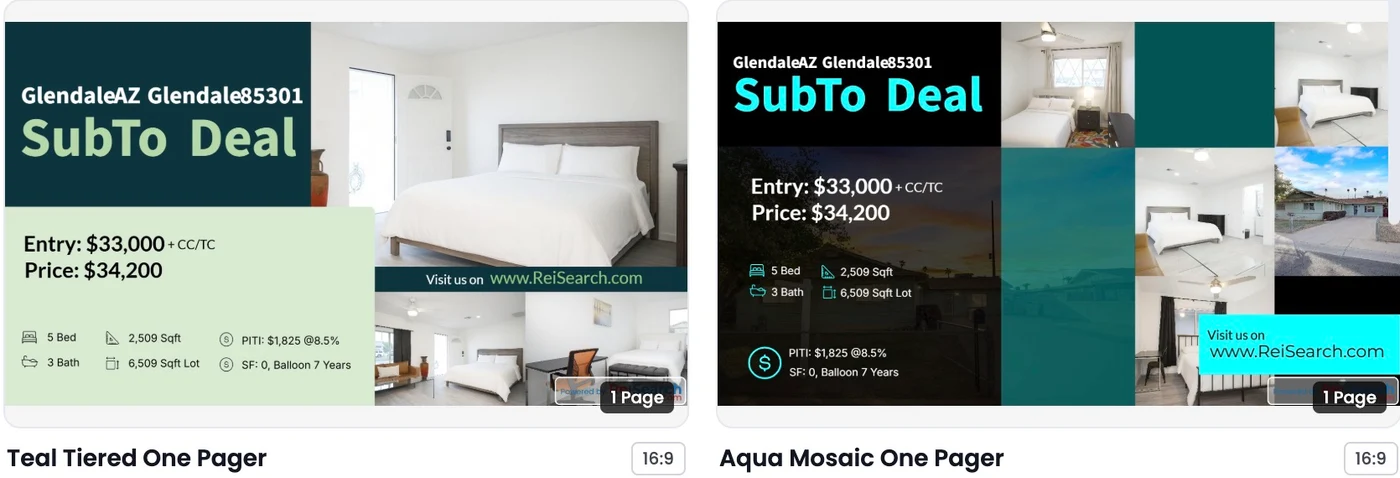
Library previews demonstrate the design and can contain sample text, numbers, or unresolved fields. They are not verified figures for your property.
4. Choose an underwriting version if prompted
After selecting a design, you may see Choose underwriting version. Select the intended Underwriting version, then choose Generate presentation. The active version is the initial selection when available.
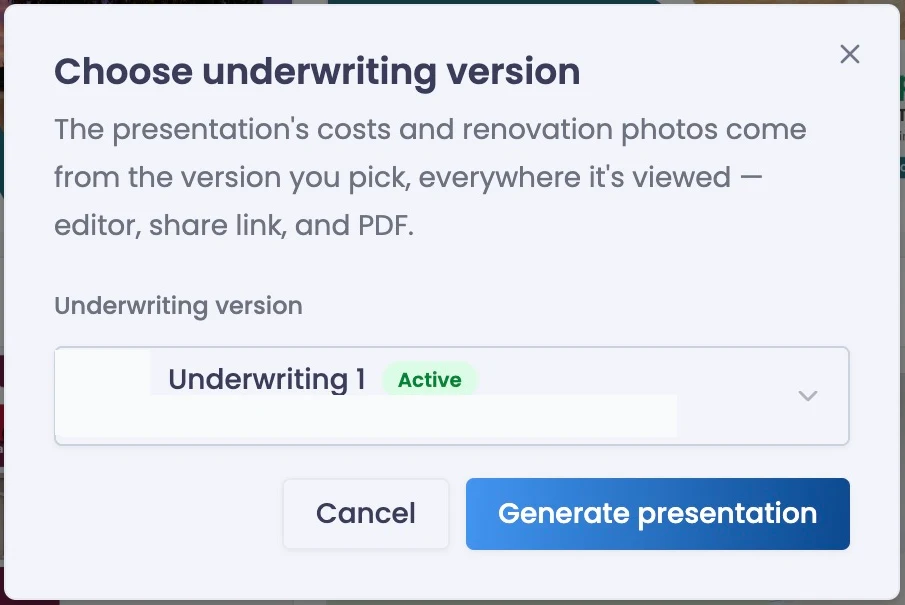
The chosen version supplies costs and renovation photos in the editor, share link, and PDF. Select the scenario you intend to present, rather than assuming the newest work will automatically replace it. If no underwriting exists, generation may continue without this choice; money and renovation content can remain placeholders.
5. Review the generated slides individually
Select the property overview in the left slide rail and compare its photos and facts with the source property. In our example, this populated the overview with the property’s photos, three bedrooms, one bathroom, and 1,069 square feet.
Then select every remaining slide. Check:
- Literal headings and amounts that may still describe the template’s sample property.
- Empty fields, zero amounts, or visible binding text such as
{{...}}. - Financial assumptions, strategy-specific claims, renovation images, and selected underwriting scenario.
- Contact details, logos, image crops, and text that no longer fits.
During review, one public one-page example retained a sample area value even though other property data changed. Compare important facts individually; a successful generation is the start of review.
6. Save the private working presentation
Use Save → Save Presentation and confirm the saved state. The generated example can remain private while you edit. Publishing is a separate decision after checking the full deck.
If Preview opens Share & Download and its public preview is inactive, inspect the editor slides or an available file export. The public preview can require publication; do not publish merely to inspect an unfinished deck.
Next, follow the in-app walkthroughs or build the complete property story.