
Before you begin
For a ready-made design, open a populated property and choose Presentations → Use Template → Default Templates. Follow create from a public template for this illustrated route.
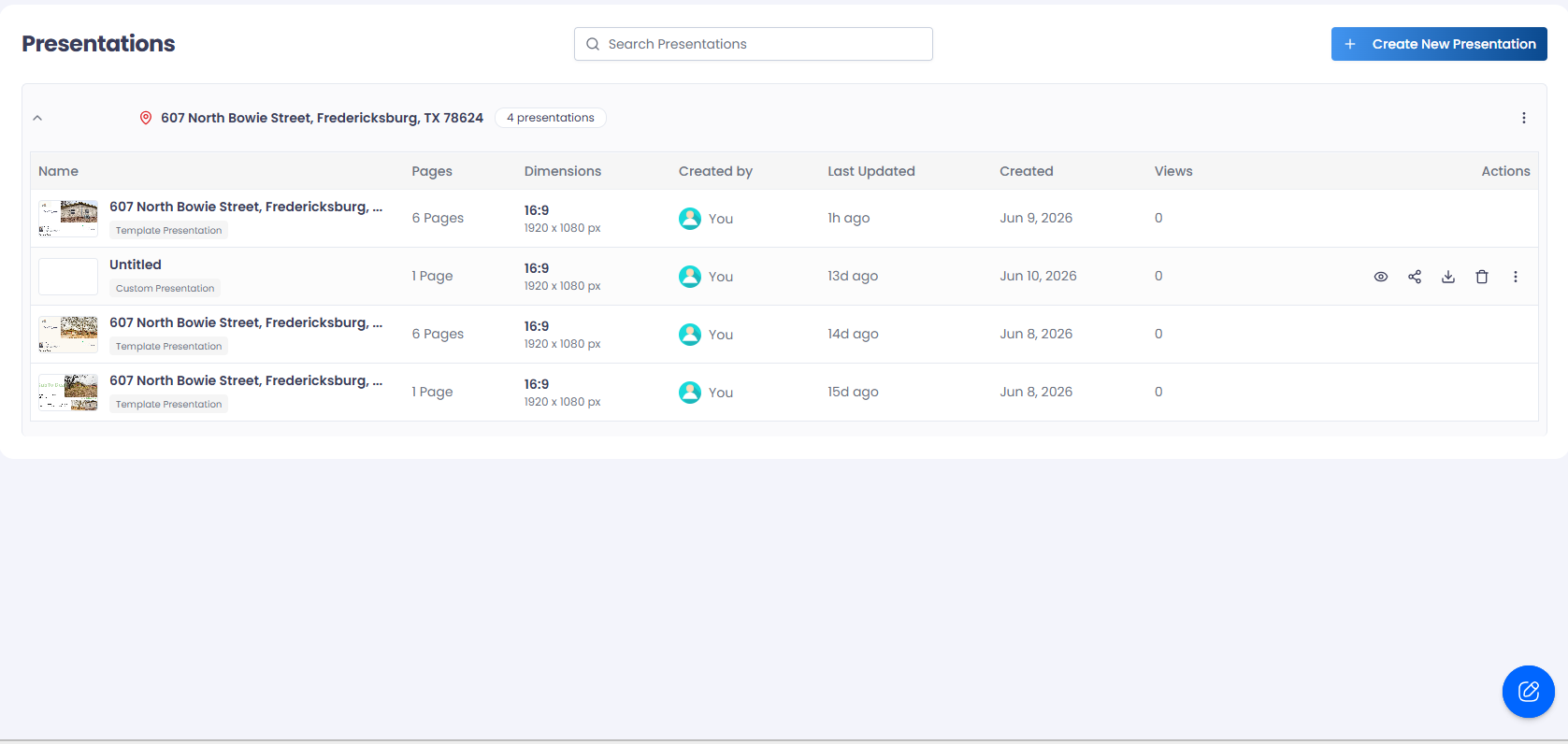
For a clean canvas, creation starts from the Presentations page. The Create New Presentation action is available on desktop-sized screens and uses draft properties from your ReiSearch account.
Open Presentations
Open Presentations from the ReiSearch navigation, then select Create New Presentation.
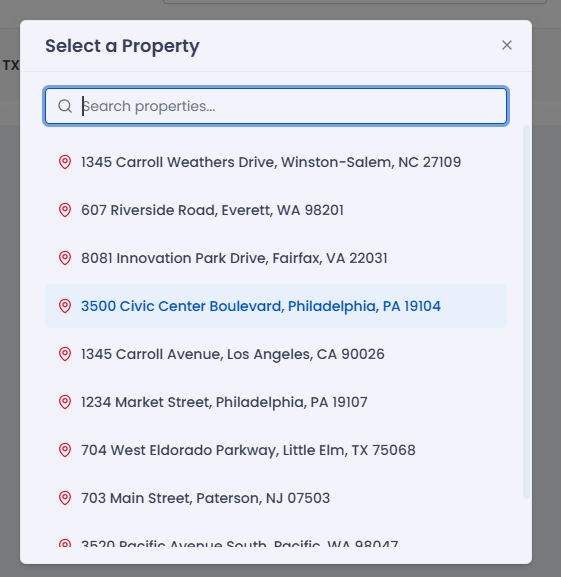
Choose a property
Search your available properties in the Select a Property dialog and choose the property you want to feature.
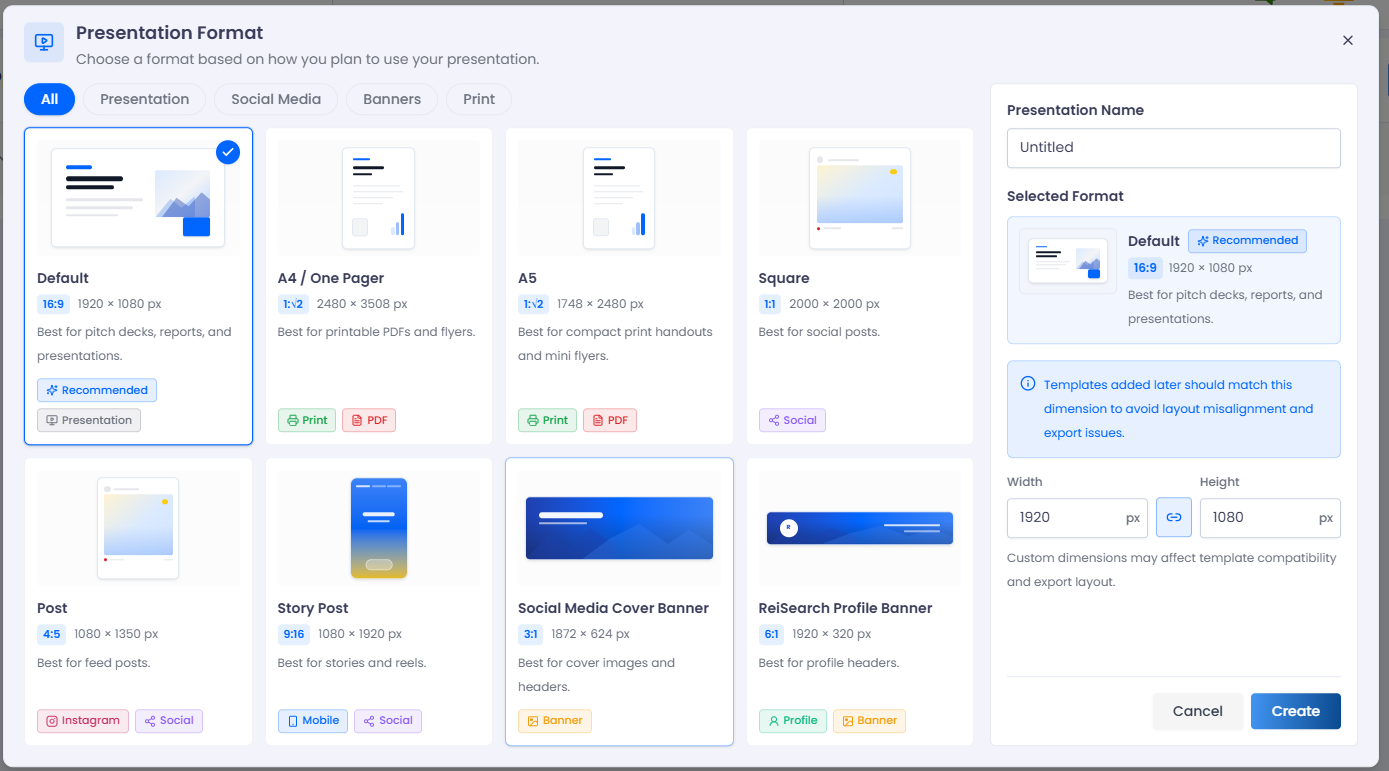
Select a format and name the presentation
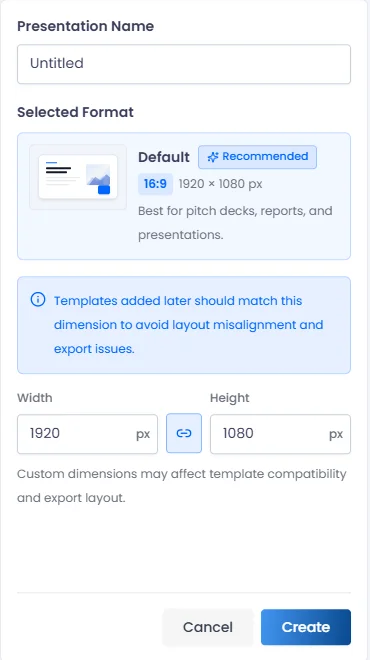
Choose a preset based on how you plan to use the presentation. The default 16:9 — 1920 × 1080 format is recommended for pitch decks, reports, and presentations.
Available format groups include Presentation, Social Media, Banners, and Print. You can also set a custom width and height, although custom dimensions can affect template compatibility and export layout.
Enter a presentation name and confirm the dimensions. Review Underwriting Version when available: the chosen version supplies costs and renovation photos. Without underwriting, those sections can remain placeholders. Select Create.
Follow the guided walkthrough
The app includes creation and editor tours with highlighted actions and Watch video. See follow the presentation walkthroughs for each stage.
Next step
The presentation opens in the editor. Add slides and content, then use Save → Save Presentation when you reach a good stopping point.
Build the rest of the presentation
Opening the editor is the starting point. Follow Build a complete property presentation to assemble a useful deck with property-backed blocks, pinned comps, charts, renovation evidence, and branding.
- Add property and deal-data blocks instead of retyping every value.
- Add pinned comp evidence to explain the comparison.
- Add documents and market charts when they support your story.
- Add renovation imagery and cost tables for a proposed improvement plan.
- Use linked fields and formulas for data-backed text.
- Arrange and brand the slides, then review the public view or exported file.