
Export when your recipient needs a file for a meeting, email, print workflow, or image placement. The generated file is a snapshot of the presentation at that point in time.
Choose the output you need
| Format | Available scope | Appropriate use |
|---|---|---|
| All pages, a specific page, or selected custom pages | A full presentation or a reviewed subset of slides | |
| PNG | A single page | A crisp image for another document or platform |
| JPEG | A single page | Image sharing when that format suits the destination |
PNG and JPEG are single-page exports. Do not choose an image format expecting a multi-page deck or a ZIP of every slide.
Prepare the presentation
- Confirm that all required property data has loaded.
- Wait for uploaded images to finish.
- Use Save → Save Presentation and inspect the save status.
- Open Preview and check the slides you intend to export.
- Confirm the address and contact information you want included.
If the editor says it is still loading the latest property data, wait and inspect the results before trying again. Exporting unresolved information can produce an incorrect file.
Generate the export
- Open Share & Download and choose Download File.
- Select PDF, PNG, or JPEG.
- Choose the appropriate Export Scope.
- Review Show Property Address and Include Contact Information.
- Read the Export Summary, including the selected format, pages, and estimated size.
- Select Generate Export and wait for completion.
- Open the downloaded file and inspect it.
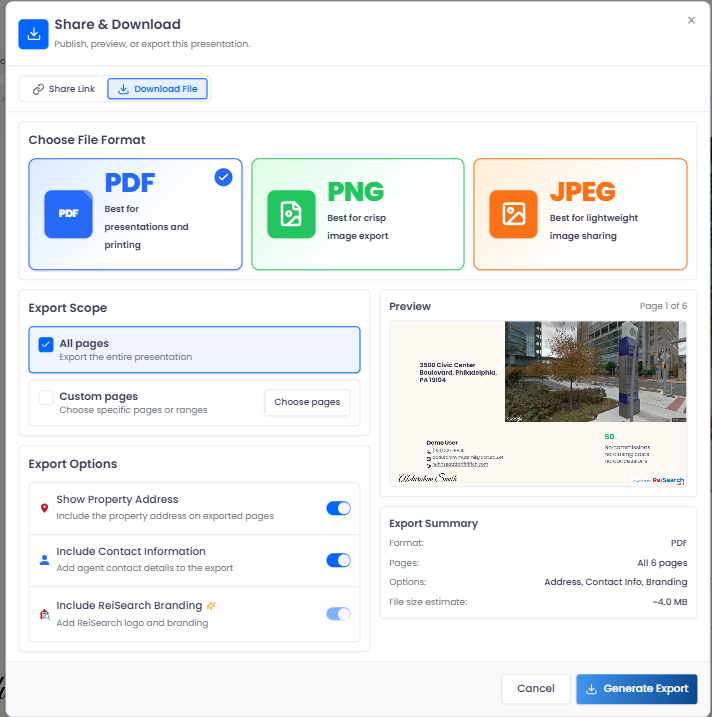
The size shown before generation is an estimate. Use the finished file to confirm the actual output.
Choose a subset of pages
For PDF, choose Custom pages and Choose pages to open Custom Page Selection. Select thumbnail pages or use Enter Range with a pattern such as 1-3, 5, 8.
Check the resulting page selection before generation. For PNG or JPEG, select one specific page; the image workflow is single-page rather than a multi-page range.
A custom subset is useful when an audience needs the overview and comp evidence but not every supporting slide. Confirm that removing pages does not remove context needed to understand the figures.
Inspect the real output
Check the first and last pages, selected page count, longest heading, densest comp card, chart labels, document readability, and any renovation before/after comparison. Confirm the intended property, address visibility, contact details, and resolved values.
Address and contact controls do not replace a content review. Text embedded in custom images, screenshots, or manually composed material needs separate inspection.
Understand later changes
Changing a property’s data or editing a deck does not update a PDF or image already downloaded. Generate a new file when important information changes, and make the version clear to recipients.
Disabling the public link does not recall exported copies. Use a share link when the audience needs the public viewer, and inspect that destination separately.
Troubleshoot export problems
- No pages available: add the intended slides before exporting.
- Custom selection is empty: select at least one valid page.
- Wrong page in an image: review the specific-page selection.
- Missing images or blank data: wait for loading and uploads, verify source information, then export again.
- The file differs from what you expected: compare the exact deck, scope, and options used for that export rather than relying on another open presentation.