
Choose the right path from the Dashboard
Every property workflow begins on the Dashboard. Before entering an address, decide whether you want ReiSearch to create the property only or create it and immediately begin comparable-property analysis.
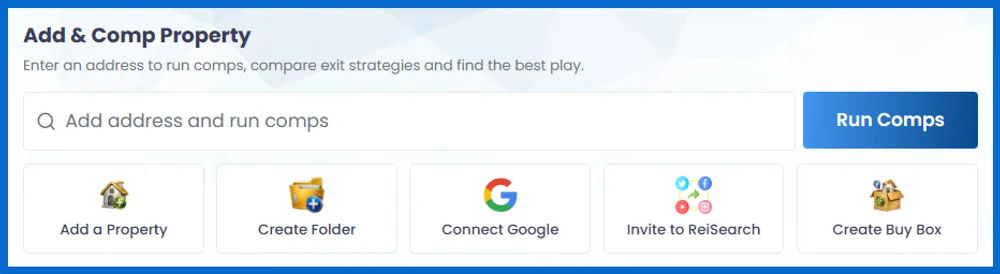
Add & Comp Property
Creates the property workspace, gathers available property information and images, and starts comp analysis.
Use this when comps are your next step.Properties → Add Property
Creates and populates the property workspace without automatically starting a comp run.
Use this when you want to review the property first.The important difference: Both paths create a ReiSearch property workspace. Only Add & Comp Property automatically begins comp analysis.
Path 1: Add the property and run comps automatically
- Sign in at reisearch.com/login. ReiSearch opens the Dashboard.
- Find Add & Comp Property.
- Enter the address in Add address and run comps.
- Select the correct suggested address, then choose Run Comps.
Navigation path: Dashboard → Add & Comp Property → Run Comps
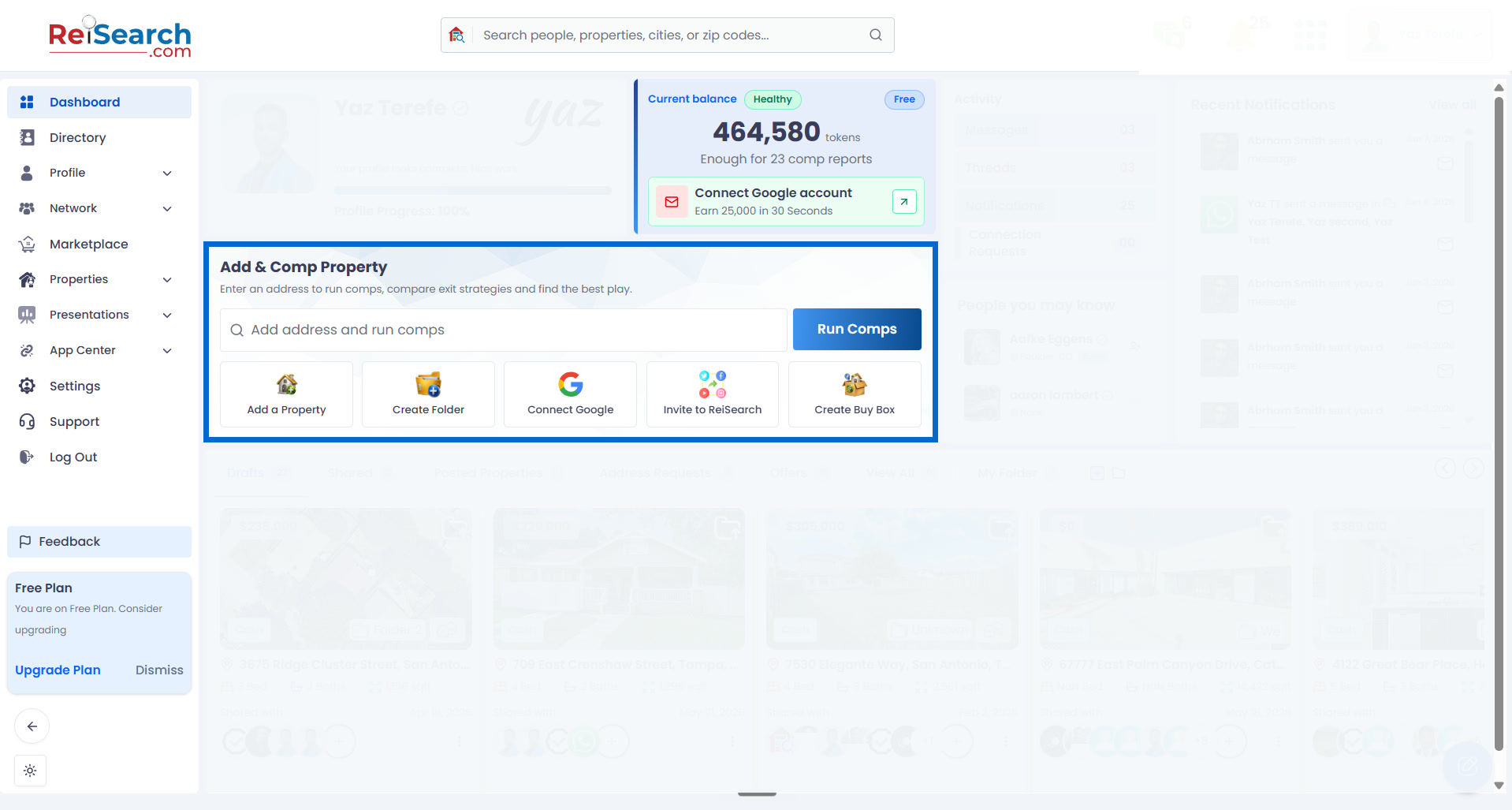
Best for a faster analysis workflow: ReiSearch creates the property, gathers its available information and images, populates the workspace, and begins comp analysis. Running comps may use additional credits.
Path 2: Add the property without automatically running comps
- From the Dashboard, open Properties in the left navigation.
- Select Add Property.
- Wait for the Add a Property page to open.
Navigation path: Dashboard → Properties → Add Property
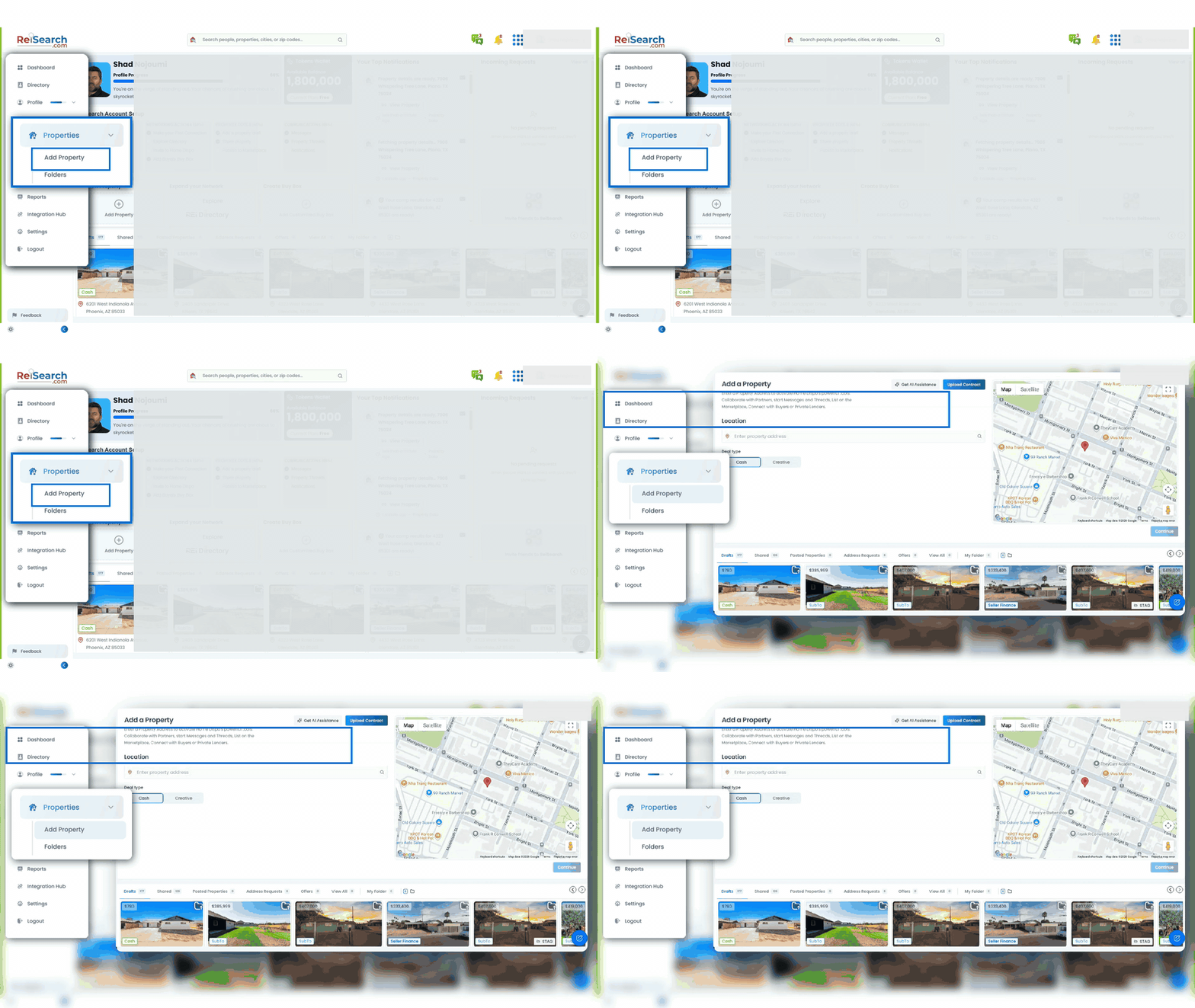
Best when you want to review first: This path creates the ReiSearch property record without starting a comp run. ReiSearch still gathers available property information and images to populate the workspace.
Enter and verify the address
- In Location, begin typing the complete street address.
- Wait for the address suggestions.
- Select the matching suggestion instead of leaving free-typed text in the field.
- Check the standardized address below the field and the map pin on the right.
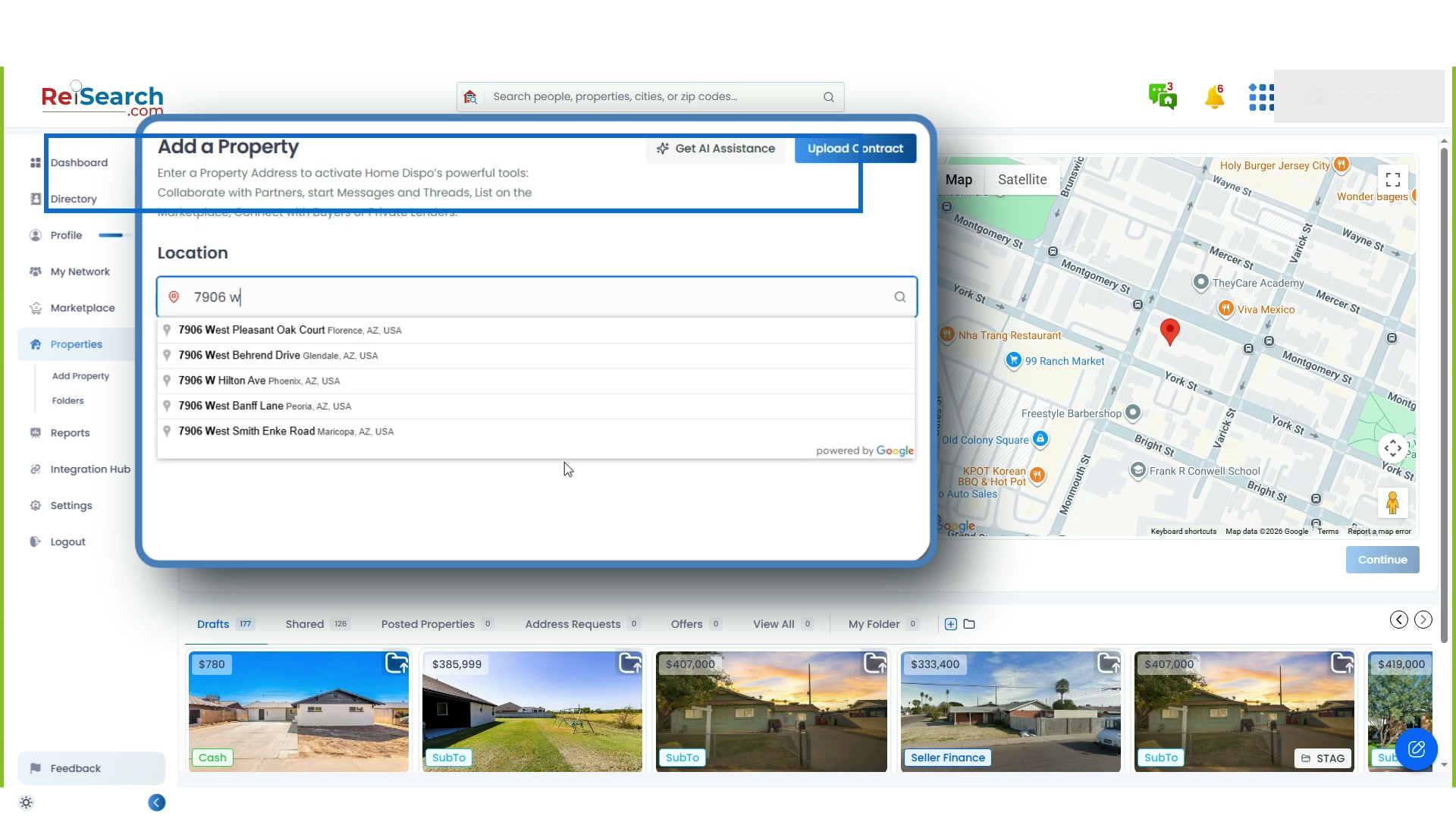
ReiSearch enables Continue only after you select a complete, valid US address. Selecting the suggestion—not simply typing the address—gives the property record the street, city, state, ZIP code, and coordinates it needs for research and mapping.
Choose the deal type
Choose the structure that best matches the opportunity:
- Cash creates the property with cash-oriented deal fields.
- Creative reveals Subject To, Hybrid, and Seller Finance structures.
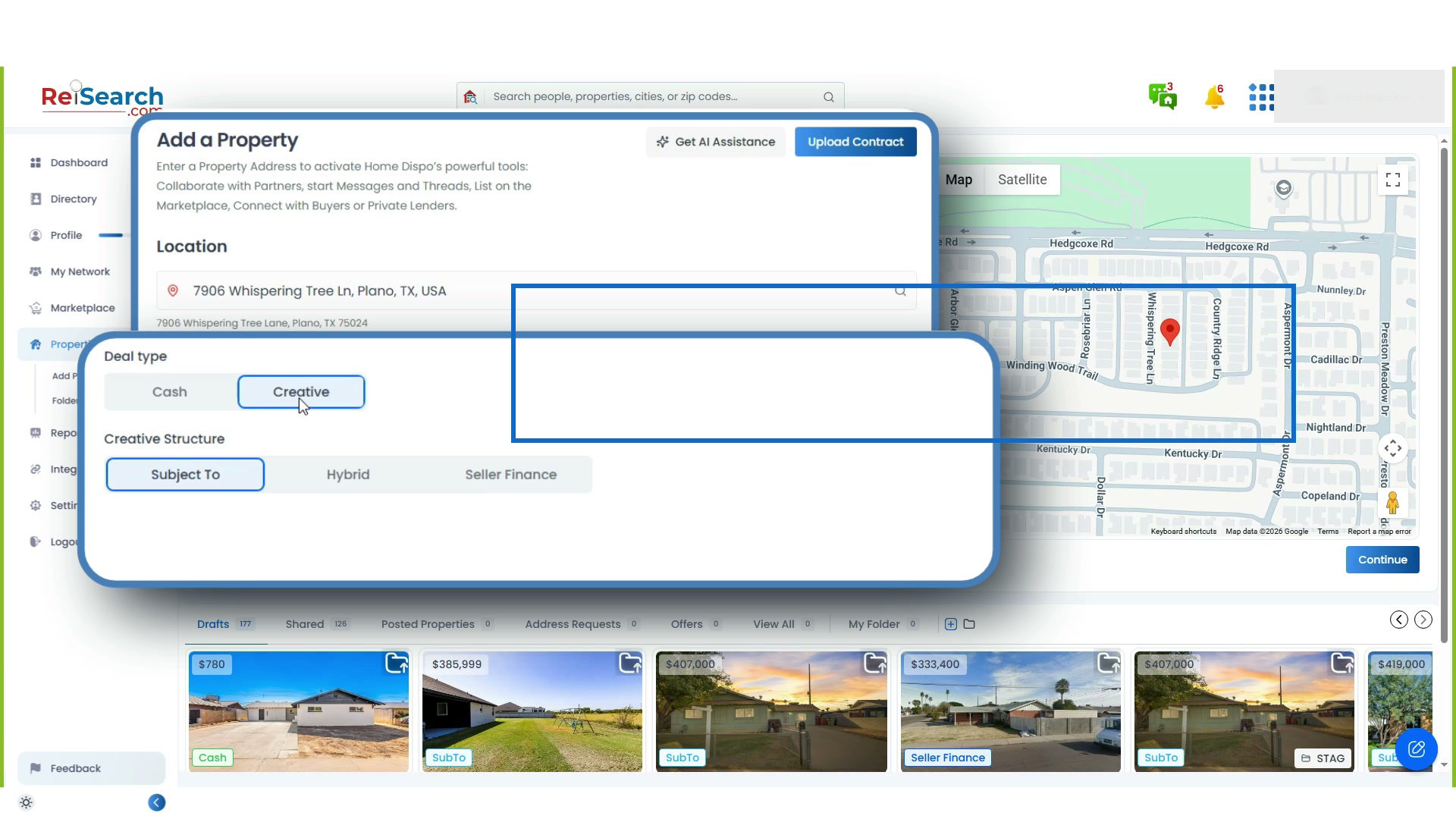
Your selection determines which Deal Structure fields ReiSearch emphasizes in the property workspace. You can review and update those fields after the property is created.
Create the property
Review the selected address, map pin, and deal type, then select Continue.
This sends the property-creation request. Depending on the account plan and selected workflow, the action can use tokens or credits. ReiSearch shows a warning if the account does not have enough balance.
Do not select Continue more than once while Creating is visible. When the request succeeds, ReiSearch opens the property workspace.
Review what ReiSearch prepared
ReiSearch researches the selected address and can populate property images, property type, year built, bedrooms, bathrooms, APN, building area, lot size, market values, and deal fields.
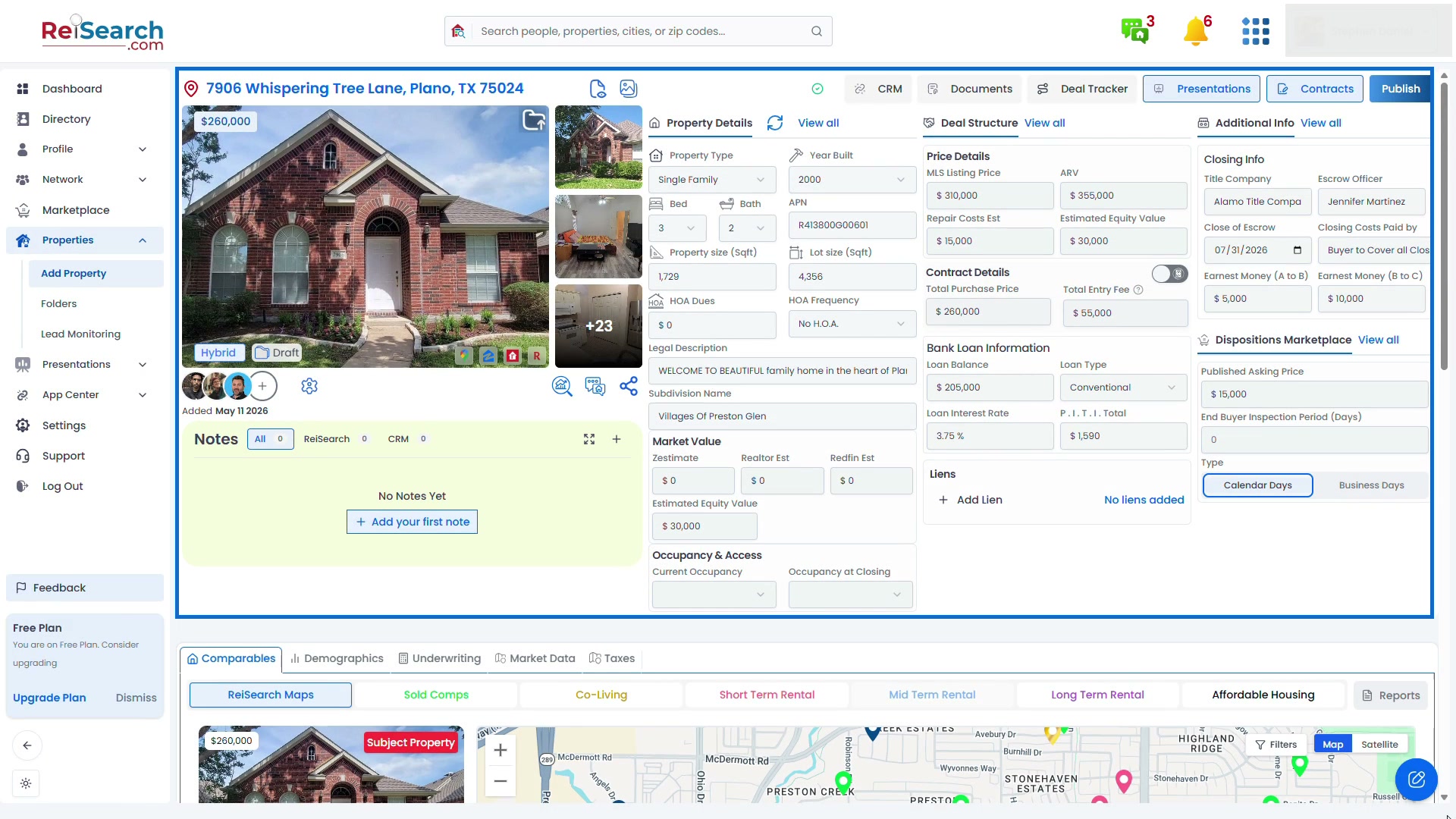
Availability varies by property and data source. Treat the populated workspace as a faster starting point, then verify important values before using them in underwriting, presentations, offers, or shared materials. Add or correct information in Property Details, Deal Structure, Additional Info, or Dispositions Marketplace.
The address is now more than a saved record: it is the shared workspace where your team can research, analyze, discuss, and move the deal forward. See How ReiSearch Automatically Builds a Property Record for the enrichment and verification process, or Use the ReiSearch Property Workspace for the complete workspace tour.
Know what happens next
| If you chose | What happens next |
|---|---|
| Properties → Add Property | The property is ready for review, collaboration, and analysis, but comping has not started. When you are ready, open Comparables and follow Run your first real estate comp. |
| Add & Comp Property | ReiSearch has already started the comp analysis. Wait for the run to complete, then review and refine the results inside the same property workspace. |
You do not need to add the property again. Both paths lead to the same property workspace; the difference is whether comping begins automatically.
Troubleshoot property creation
| What you see | What to do |
|---|---|
| Continue is disabled | Select a complete address from the suggestion list. Free-typed text alone is not enough. |
| The wrong map location appears | Clear the field, enter the complete address again, and select the correct standardized suggestion. |
| A token or credit warning appears | Review the account balance or plan before retrying. |
| Some property details are blank | The source may not provide every field. Open the property workspace and add the verified information manually. |
| You started comps by mistake | Do not submit another run. Open the property and check the current comp-run status before taking another action. |
| The request fails | Keep the selected address, wait briefly, and retry once. If it still fails, contact ReiSearch Support. |